# Get Started on the Desktop
Step-by-step guide to help you start using Font Awesome icons on your desktop.
> You can use Font Awesome icons on the desktop in design mockups, presentations, and elsewhere in your desktop applications.
We'll cover what files and directories are contained in the desktop-use version of Font Awesome and details of using ligature-based fonts and SVG.
Make sure you've already:
- [Downloaded the Font Awesome Desktop files](https://fontawesome.com/download) and have them handy.
- Checked out [Upgrading on the Desktop](/upgrade/upgrade-on-desktop.md) if you're upgrading from a previous version.
## What's in the Download?
Our Desktop-focused download contains the following directories and files:
| Folders & files | What They Are |
| :-------------- | :------------------------------------------------------------------------------------------------------------------------------------------- |
| `/otfs` | Ligature-based font files for each style in Font Awesome |
| `/svgs` | Individual [optimized .svg vector files](/desktop/add-icons/icons-svg.md#svg-formats) for each icon in Font Awesome (separated by style) |
| `/svgs-full` | Individual [square optimized .svg vector files](/desktop/add-icons/icons-svg.md#svg-formats) for each icon in Font Awesome (separated by style) |
Did You Know?
You can also download a customized Kit which will include any **custom icons** you've added, as well as **Pro+ icons** if you have a Pro+ plan. [Get the details on using a Downloaded Kit](/desktop/setup/kit-download.md)
## Install the Ligature-based Font Files
Get up and running using ligatures to insert icons into your documents by first installing all of the styles you'd like to use. Here's a rundown of what font file corresponds to which Font Awesome style:
### Kit-Based Custom Icons
If you're using [a Font Awesome Kit](/desktop/setup/kit-download.md) and have added [custom icons](/web/add-icons/upload-icons.md).
| Style | Availability | Font Files |
| -------------------- | -------------------------------------------------------------- | --------------------------------------------------------- |
| Custom Icons | [Pro Kits + Icon Download only](https://fontawesome.com/plans) | `/otfs/Font Awesome Kit [kit-ID]-Regular-400.otf` |
| Custom Duotone Icons | [Pro Kits + Icon Download only](https://fontawesome.com/plans) | `/otfs/Font Awesome Kit [kit-ID]-Duotone-Regular-400.otf` |
You'll want to install these into the Font Manager that your operating system uses to manage fonts. For Macs, that is often Font Book or FontBase. For Windows, it's the Fonts control panel. Also, depending on your operating system and management software, **make sure that you've activated/enabled these fonts in the Font Manager once they are installed**. They will only be available to use in your apps if they have been activated.
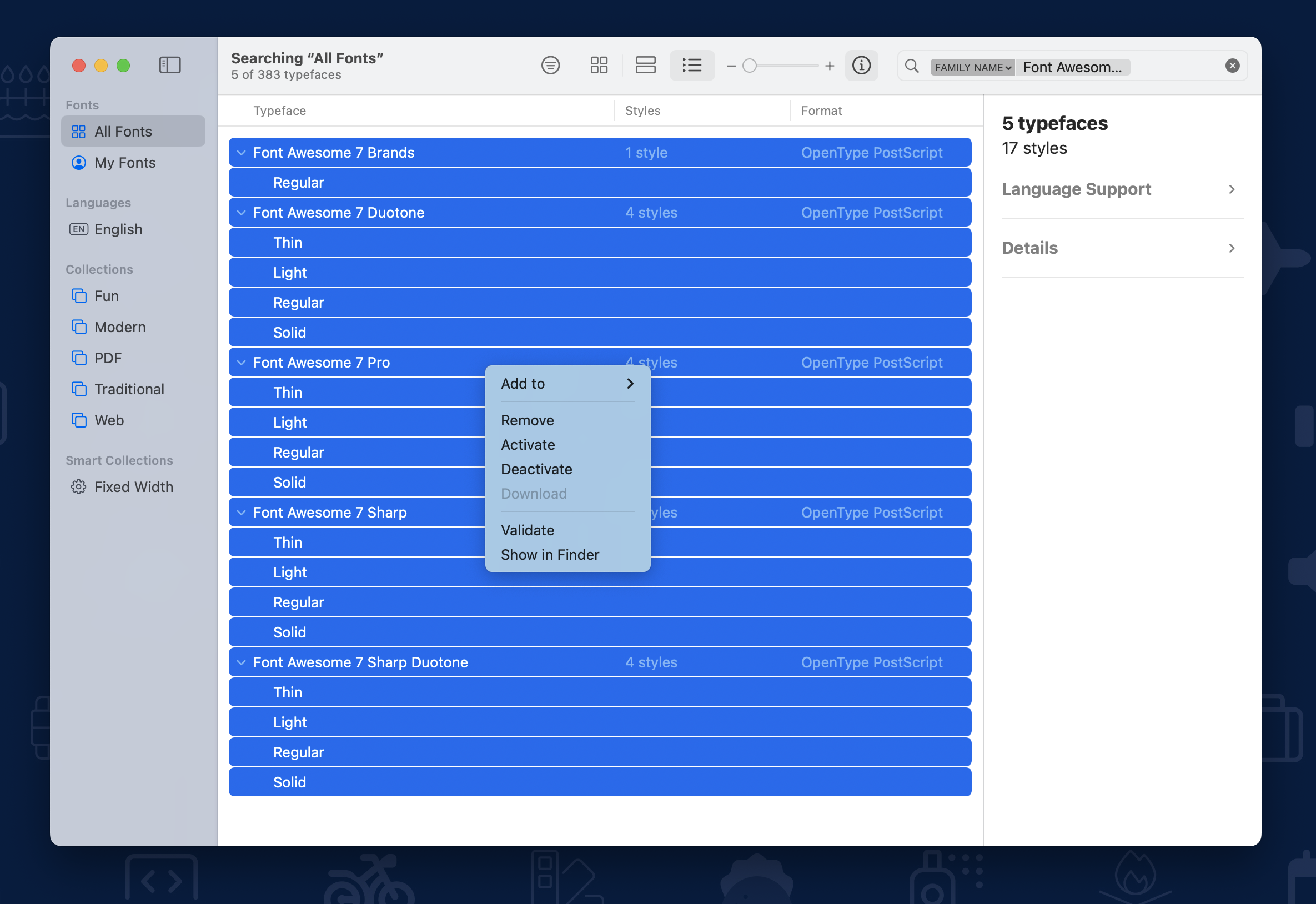 Font Awesome 7 fonts installed and being activated in Font Book on Mac OS X
Not sure how to install fonts?
Check out these [PC](https://www.fontspring.com/support/installing/how-do-i-install-fonts-on-my-windows-pc) and [Mac](https://www.fontspring.com/support/installing/how-do-i-install-fonts-on-my-mac) help articles for more details and guidance.
## Enable Ligatures
Many desktop programs have a setting for enabling ligatures. Most of the time, we find it's on by default, but if you're having trouble with ligatures, you might want to check that ligatures are turned on.
We have instructions for a few common applications listed below, but you should check the documentation for your specific program and version.
### Adobe Creative Cloud
In Photoshop, you can toggle ligatures using the "fi" button in the Character palette. In Illustrator, you can find the "fi" button in the Open Type palette.
 Enabling Font Awesome ligatures in Adobe Photoshop
### Windows + Microsoft Office
To enable ligatures in Microsoft, open your font settings by hitting Ctrl-D. In the Advanced tab under Open Type Features, set ligatures to "All" and make sure the "Use contextual alternates" checkbox is checked. And make sure your document isn't in compatibility mode.
Enabling Font Awesome ligatures in Adobe Photoshop
### Windows + Microsoft Office
To enable ligatures in Microsoft, open your font settings by hitting Ctrl-D. In the Advanced tab under Open Type Features, set ligatures to "All" and make sure the "Use contextual alternates" checkbox is checked. And make sure your document isn't in compatibility mode.
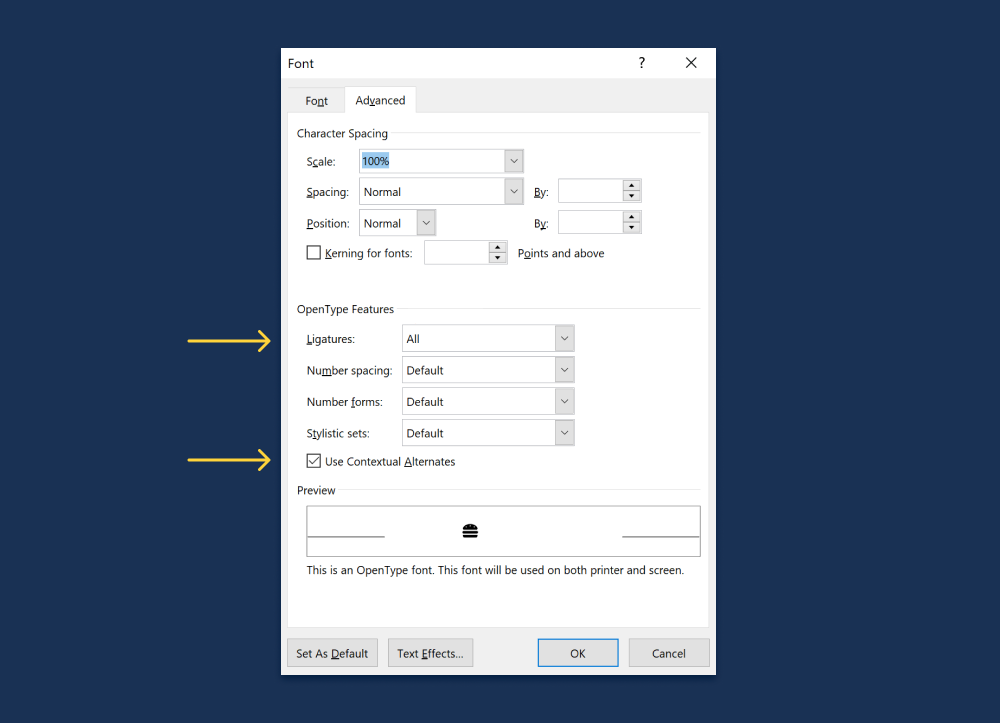 Enabling Font Awesome ligatures in Microsoft Office on Windows
---
### Go Add Some Icons
Our [icons](https://fontawesome.com/icons) are now ready to do your Desktop project's bidding. [Learn how to add them to
your project](/desktop/add-icons/ligatures.md) and then use their power to bring order and style to your designs!
Enabling Font Awesome ligatures in Microsoft Office on Windows
---
### Go Add Some Icons
Our [icons](https://fontawesome.com/icons) are now ready to do your Desktop project's bidding. [Learn how to add them to
your project](/desktop/add-icons/ligatures.md) and then use their power to bring order and style to your designs!
Add Icons As SVGs
Add Icons as Glyphs
Add Icons as Ligatures
Duotone Icons on the Desktop