# SVG Symbols
Guide to adding Font Awesome icons as SVG symbols for reusable graphics.
> Looking to use the SVG + JS method to get your icon sprites to make repeated icons more performant on your page? We've got your back.
We'll cover the basics of when, and how, to use SVG Sprites to improve load time on sites that repeat the same icons.
Make sure you:
- Plan to use [the SVG+JS method of Font Awesome](/web/dig-deeper/webfont-vs-svg.md)
- Are using a lot of the same icon or icons on a single page
- Have your project [set up with Font Awesome](/web.md#web-setup)
You might be wondering how rendering icons with JavaScript affects performance. Well you're not the only one. We worried about this while we were developing it and even took some special measures to make sure [it was as fast as we could make
it](/web/dig-deeper/performance.md).
Our testing shows that for the typical number of icons most people use on a site, the loading and rendering time for [SVG+JS method is faster than Web Fonts](/web/dig-deeper/webfont-vs-svg.md).
## A Case for SVG Symbols
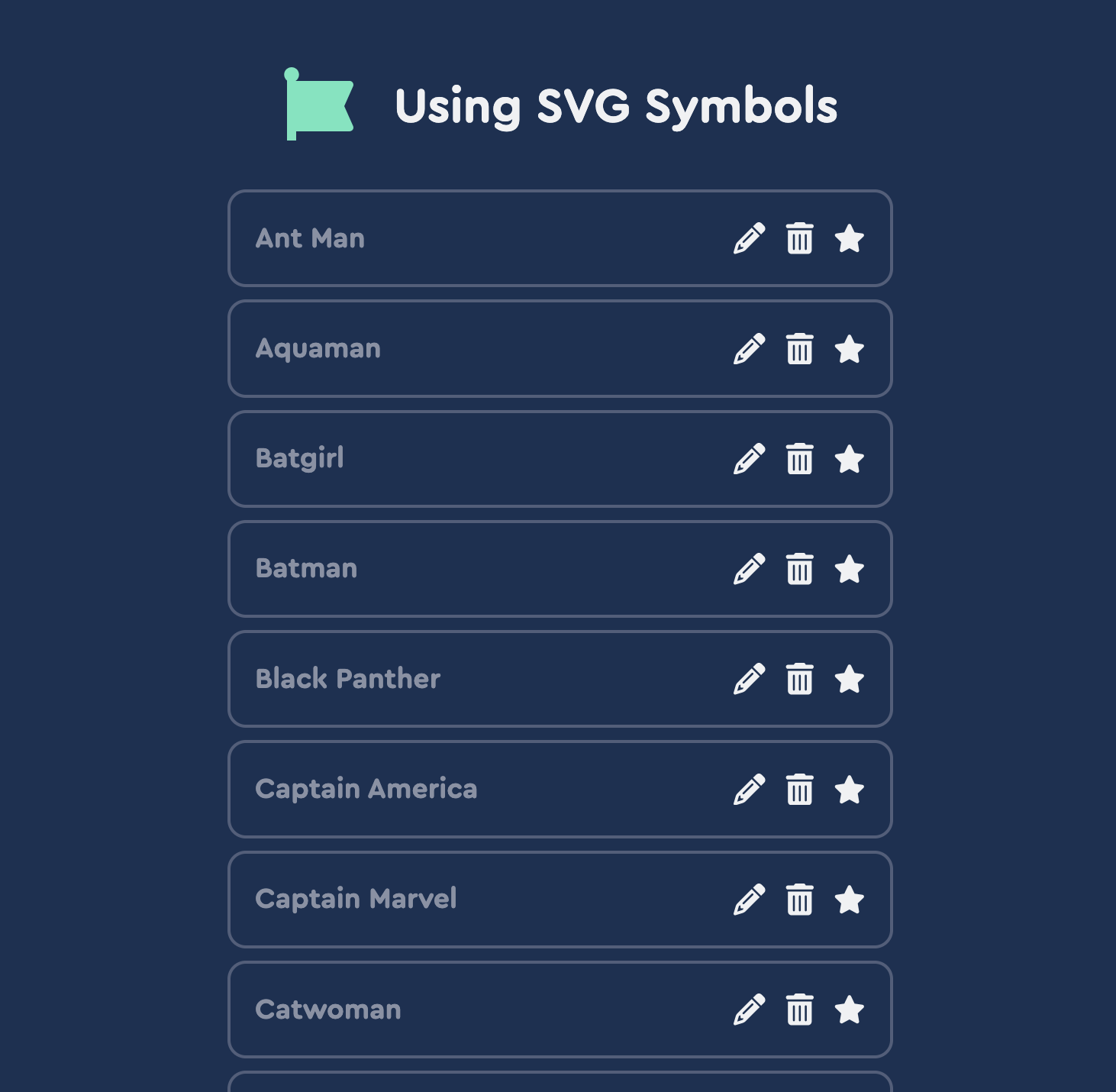
The case below is a great one for SVG Symbols – there are a bunch of the same icon repeated on the page, so you'll get a big performance boost by loading each of them only once using the step-by-step method below.
An example page that shows a good case for using SVG Symbols
Stop! Demo time!
See this working example on CodePen.io.
We'll define these icons as symbols: pencil, trash, and star. We'll create names for the symbols using `data-fa-symbol`: edit, delete, and favorite.
To actually use the icons, we need to reference them in an `
 An example page that shows a good case for using SVG Symbols