# Migrate from Fort Awesome
Instructions for importing Font Awesome icons from Fort into your web project.
> Customers of Fort Awesome can now migrate to Font Awesome Kits. In this guide we'll show you how.
Make sure you:
- have a [fortawesome.com account](https://fortawesome.com) that includes Download
- have a [Font Awesome Pro (fontawesome.com)](https://fontawesome.com) subscription
## Getting Icons from Fort Awesome
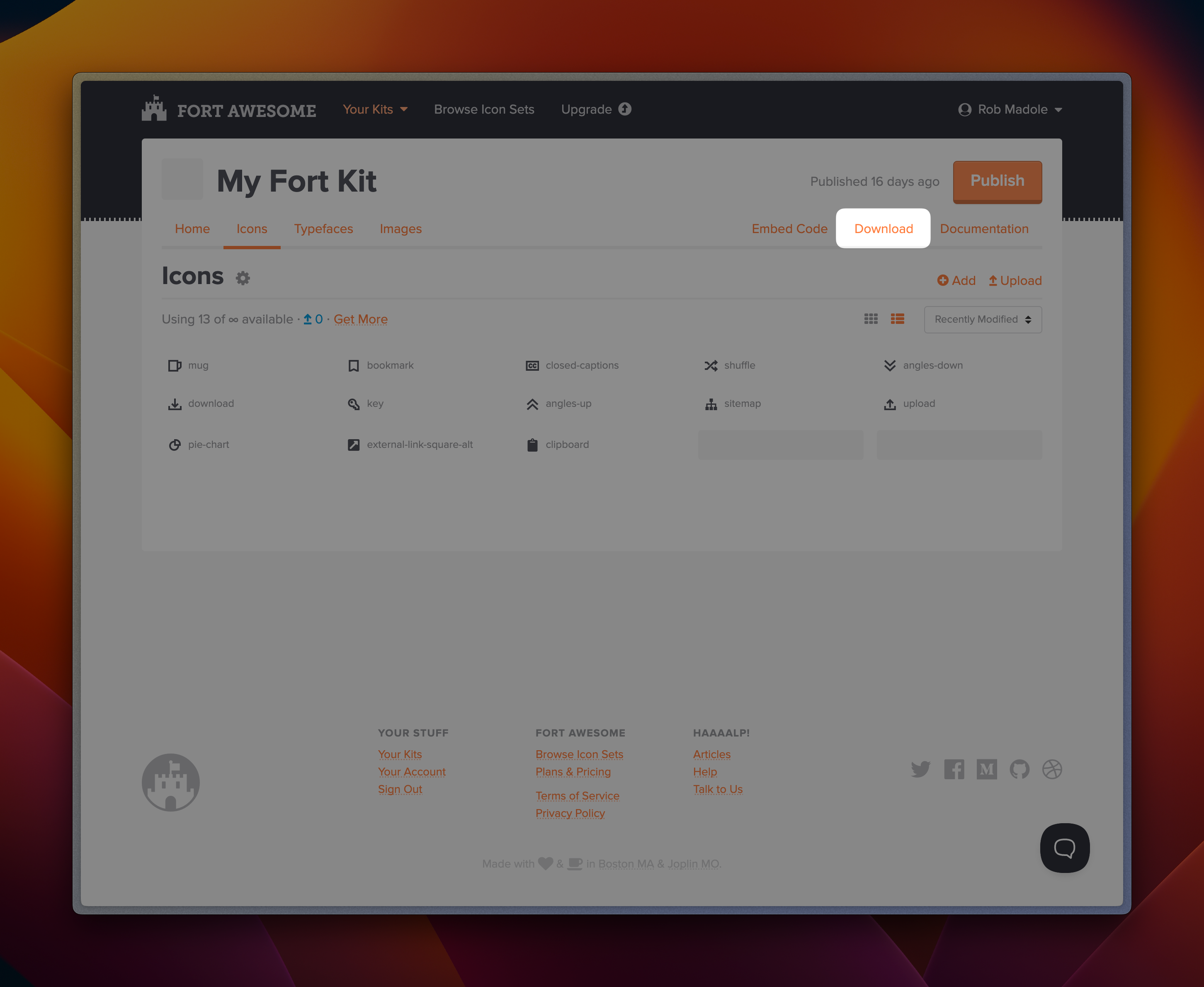 Download your Fort Kit
- Login to your [fortawesome.com](https://fortawesome.com) account
- Select the Fort Kit you want to transfer
- Click the **Download** button and save the file to your desktop
## Setting up Your New Font Awesome Kit
Download your Fort Kit
- Login to your [fortawesome.com](https://fortawesome.com) account
- Select the Fort Kit you want to transfer
- Click the **Download** button and save the file to your desktop
## Setting up Your New Font Awesome Kit
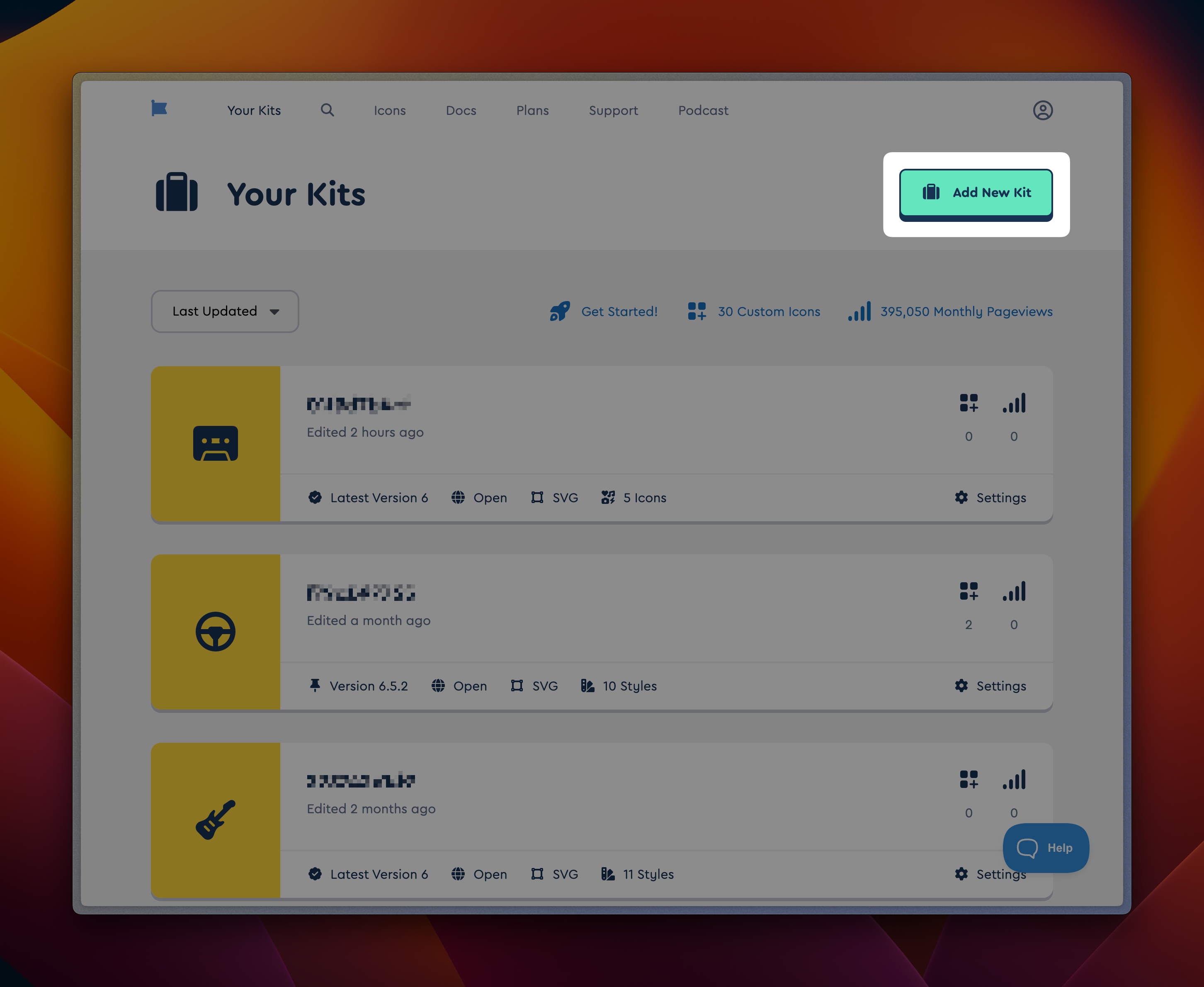 Begin at your Kits page to create a new one
- Login to [fontawesome.com](https://fontawesome.com)
- Visit [**Your Kits**](https://fontawesome.com/kits)
- Click **Add New Kit**
- Follow the steps to customize your Kit. (If you're not sure what you'll need, you can pick "By Icon" to start with an empty Kit.)
## Import Your Icons
Once your Kit is created, you can go to the Custom Icons tab and upload your icons from Fort Awesome.
Begin at your Kits page to create a new one
- Login to [fontawesome.com](https://fontawesome.com)
- Visit [**Your Kits**](https://fontawesome.com/kits)
- Click **Add New Kit**
- Follow the steps to customize your Kit. (If you're not sure what you'll need, you can pick "By Icon" to start with an empty Kit.)
## Import Your Icons
Once your Kit is created, you can go to the Custom Icons tab and upload your icons from Fort Awesome.
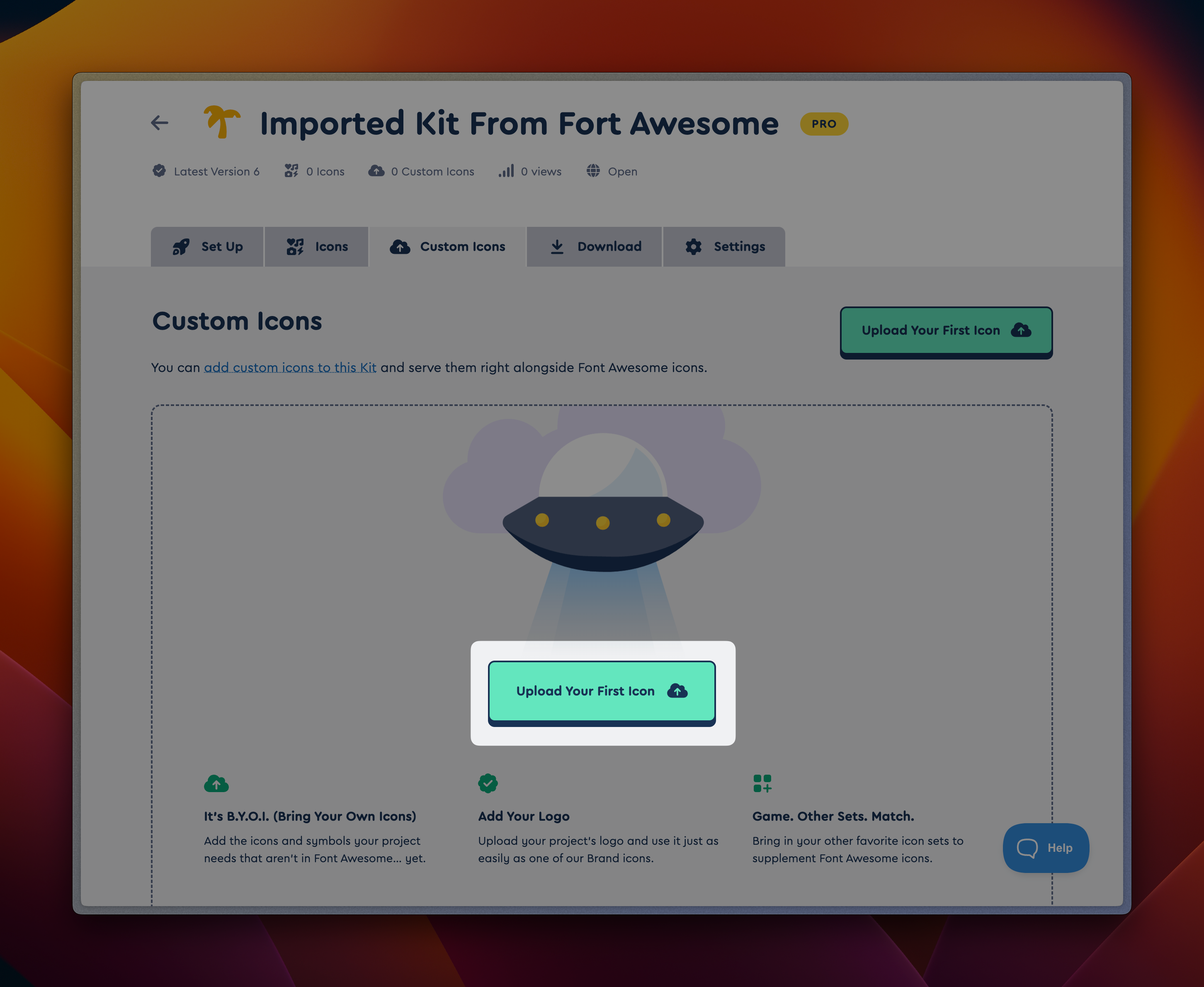 Find the page that allows you to upload icons
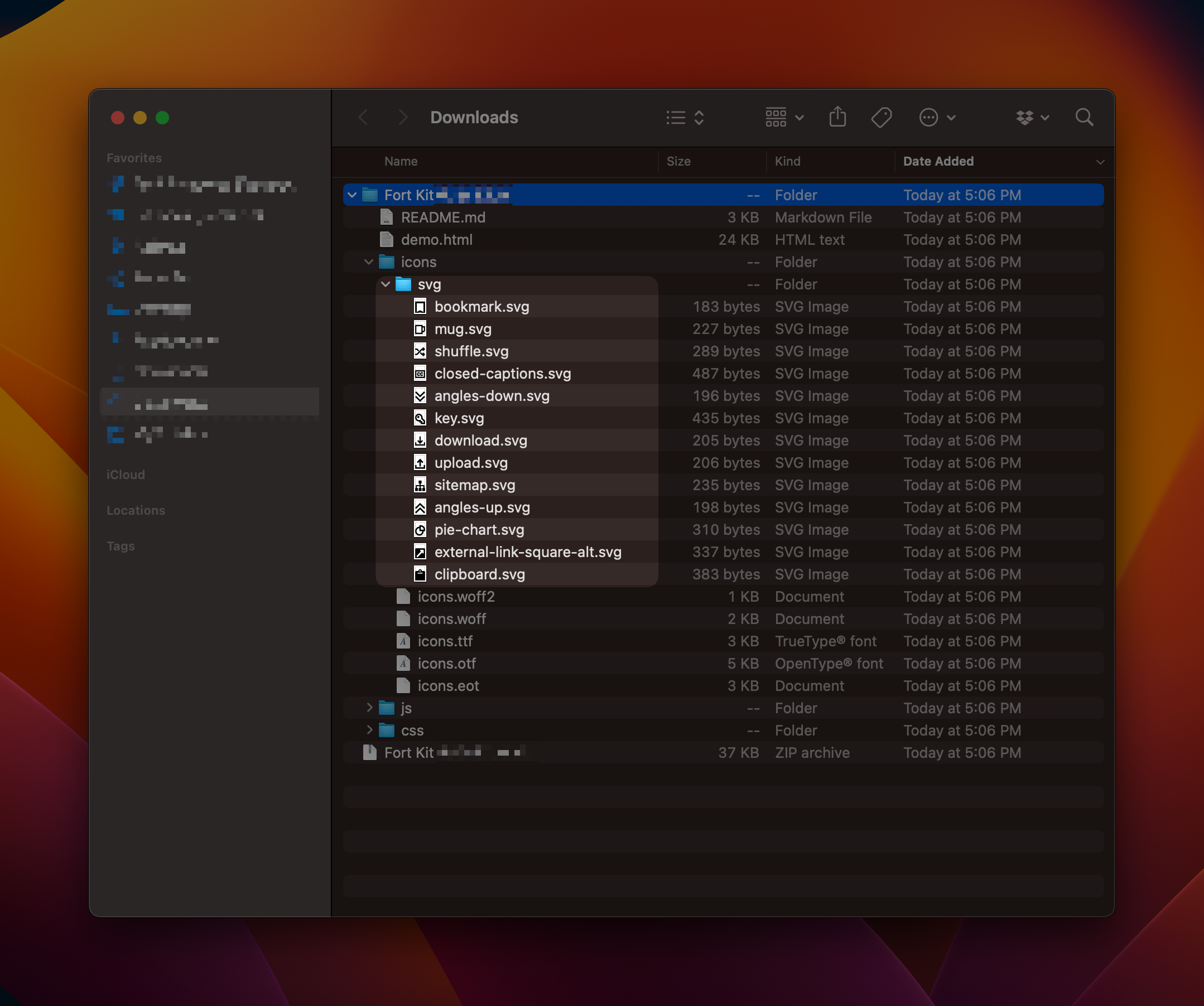 Fort Awesome icons in macOS Finder
- Locate the files that you downloaded from Fort Awesome
Fort Awesome icons in macOS Finder
- Locate the files that you downloaded from Fort Awesome
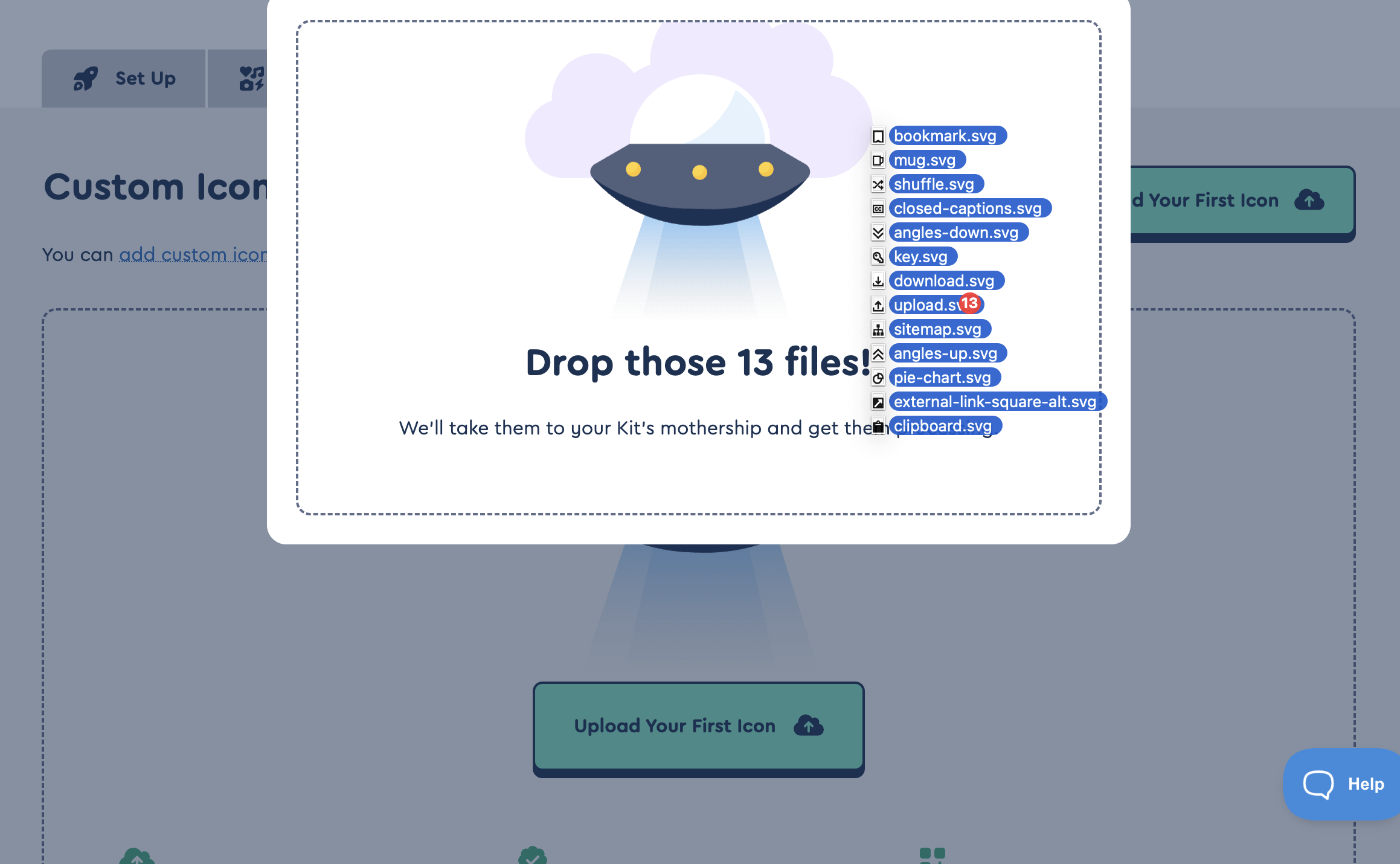 Dragging files into the upload page
- Browse or drag the files to your Kit's upload screen
Dragging files into the upload page
- Browse or drag the files to your Kit's upload screen
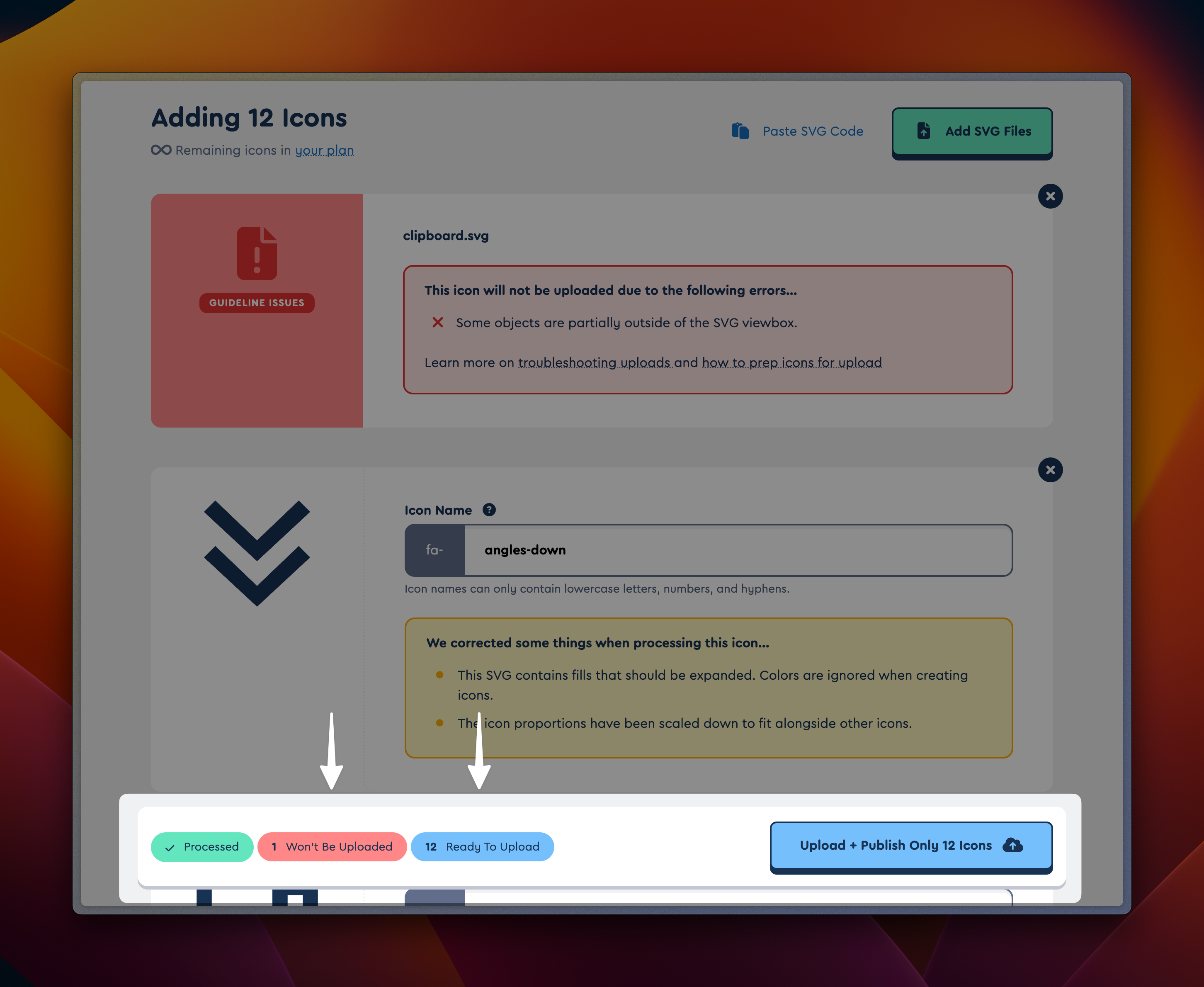 The results of selecting icons to upload
- Keep an eye out for icons that can't be uploaded. You may need to edit or revise these icons before your Kit import is complete. If you need help email [hello@fontawesome.com](mailto:hello@fontawesome.com)
- Click **Upload + Publish [Icon count] Icons**
The results of selecting icons to upload
- Keep an eye out for icons that can't be uploaded. You may need to edit or revise these icons before your Kit import is complete. If you need help email [hello@fontawesome.com](mailto:hello@fontawesome.com)
- Click **Upload + Publish [Icon count] Icons**
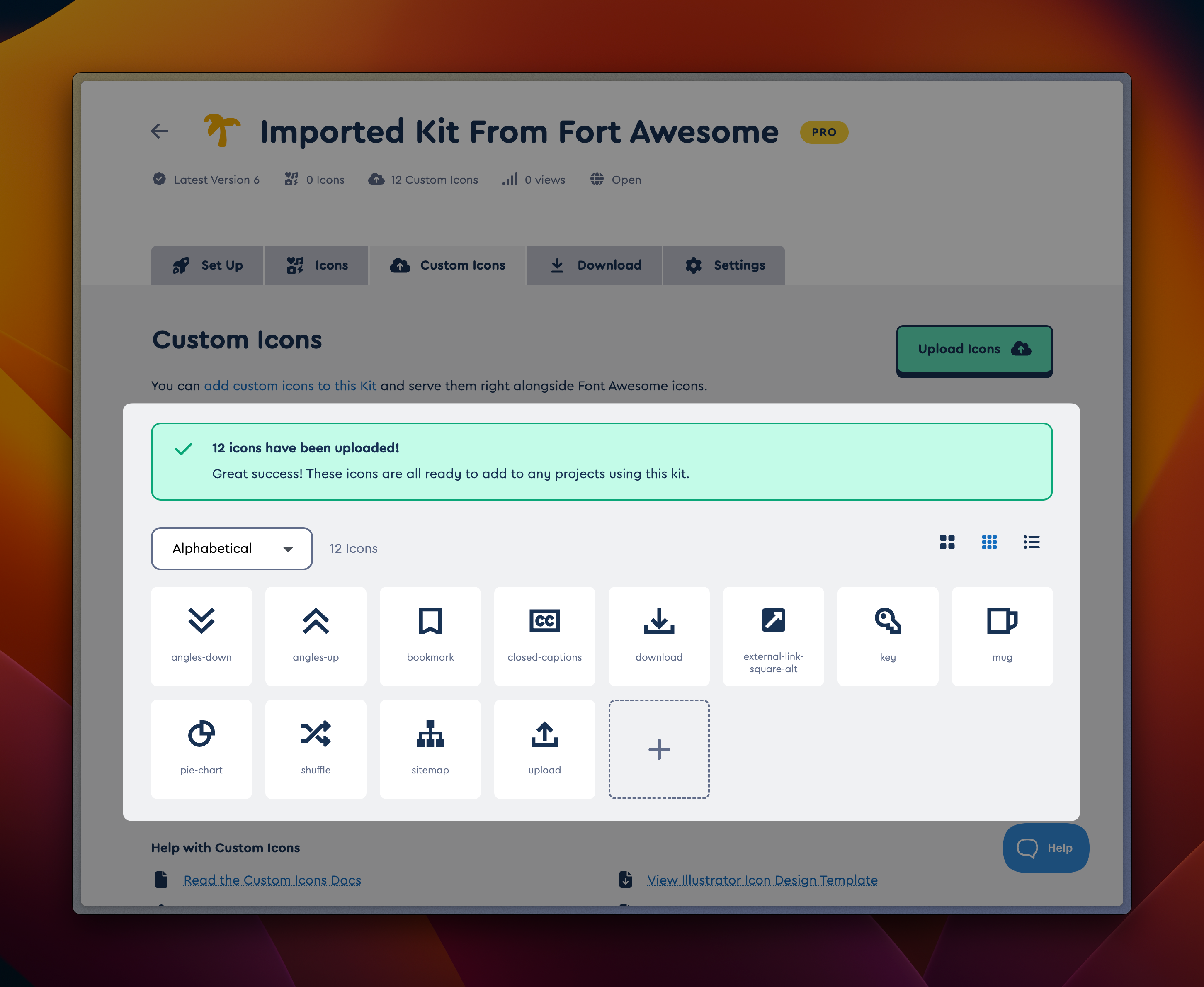 Freshly imported icons
After your icons upload you should be back on your Kits Custom Icons tab, and you'll see your imported icons. Click on any icon to see the details and how to use it in your project.
## Update Your Project's Icons
Now that you've imported your icons you'll need to update your project's icon references to use the new syntax. A Font Awesome Kit uses `fa-kit` and `fa-ICON-NAME`.
Freshly imported icons
After your icons upload you should be back on your Kits Custom Icons tab, and you'll see your imported icons. Click on any icon to see the details and how to use it in your project.
## Update Your Project's Icons
Now that you've imported your icons you'll need to update your project's icon references to use the new syntax. A Font Awesome Kit uses `fa-kit` and `fa-ICON-NAME`.
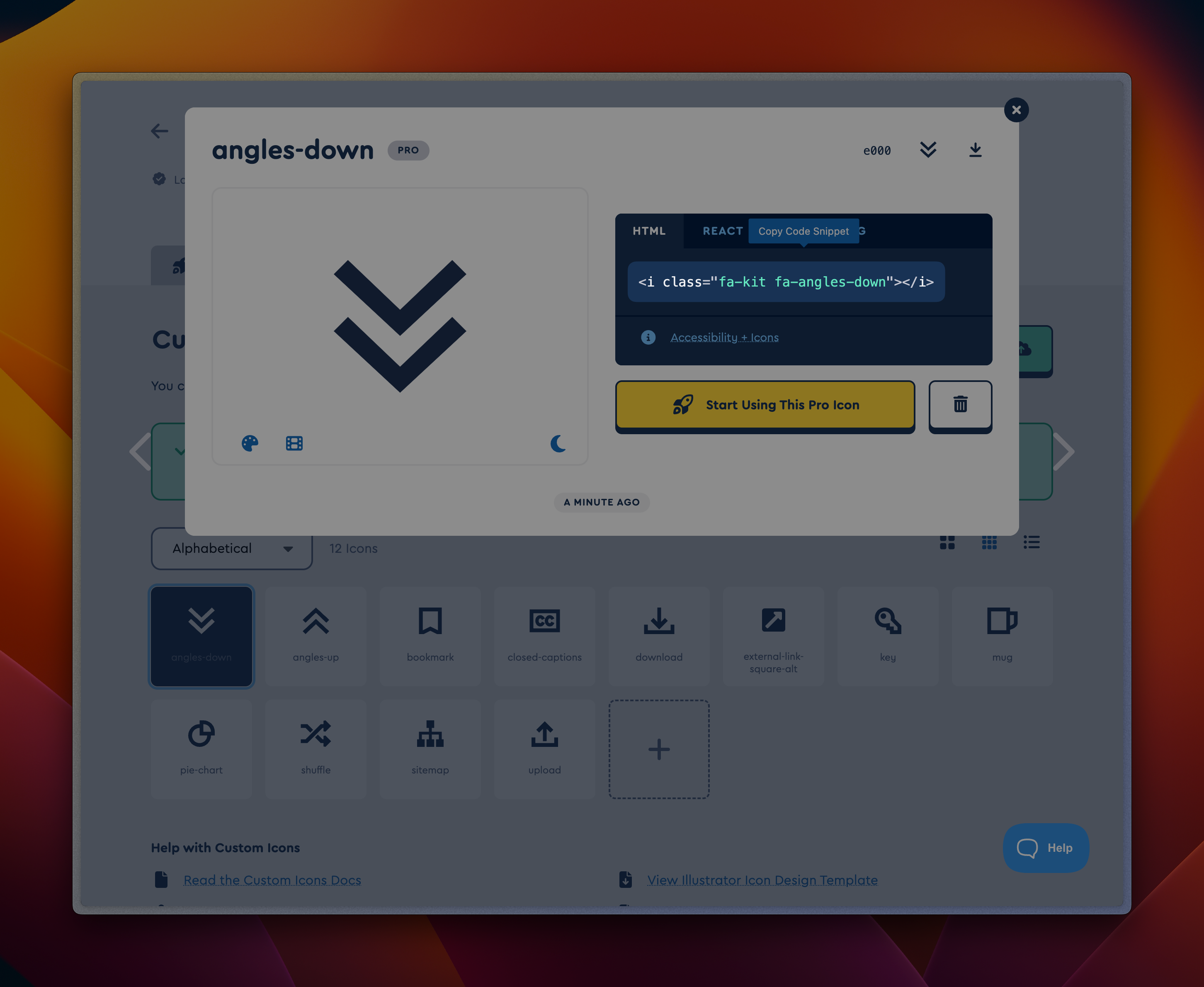 View an icon to learn how to use it
If you have issues with this process or an icon doesn't work as expected, [let us know](mailto:hello@fontawesome.com).
## Behold! The Power of Kits
Your new Kit includes some features that may not have been available in your old Fort Kit.
You can:
- Add any of Font Awesome's thousands of icons by going to your Kit's **Icons tab** and selecting icons to include in your Kit
- You can use Font Awesome's CSS-only loader by changing **Settings** → **Embed Code**
- You can restrict which domains are able to load your Kit using the **Globe icon** under your Kit's name
- You can install your Kit with an npm-compatible package manager in **Settings** → **Enable Installing Your Kit as a Package**
- ...and much more
View an icon to learn how to use it
If you have issues with this process or an icon doesn't work as expected, [let us know](mailto:hello@fontawesome.com).
## Behold! The Power of Kits
Your new Kit includes some features that may not have been available in your old Fort Kit.
You can:
- Add any of Font Awesome's thousands of icons by going to your Kit's **Icons tab** and selecting icons to include in your Kit
- You can use Font Awesome's CSS-only loader by changing **Settings** → **Embed Code**
- You can restrict which domains are able to load your Kit using the **Globe icon** under your Kit's name
- You can install your Kit with an npm-compatible package manager in **Settings** → **Enable Installing Your Kit as a Package**
- ...and much more