# Use a Kit
Guide to setting up and customizing Font Awesome Kits for your website.
> Font Awesome Kits are here to save the day! Fast, flexible, friendly, and full of icons—They're the personal CDN you've been waiting for.
## What's a Kit?
A Font Awesome Kit is the place to manage all your icons for a project. With the power of a Kit, you get the easiest way to use Font Awesome icons, great performance, easy customization, and you can even upload your own icons!
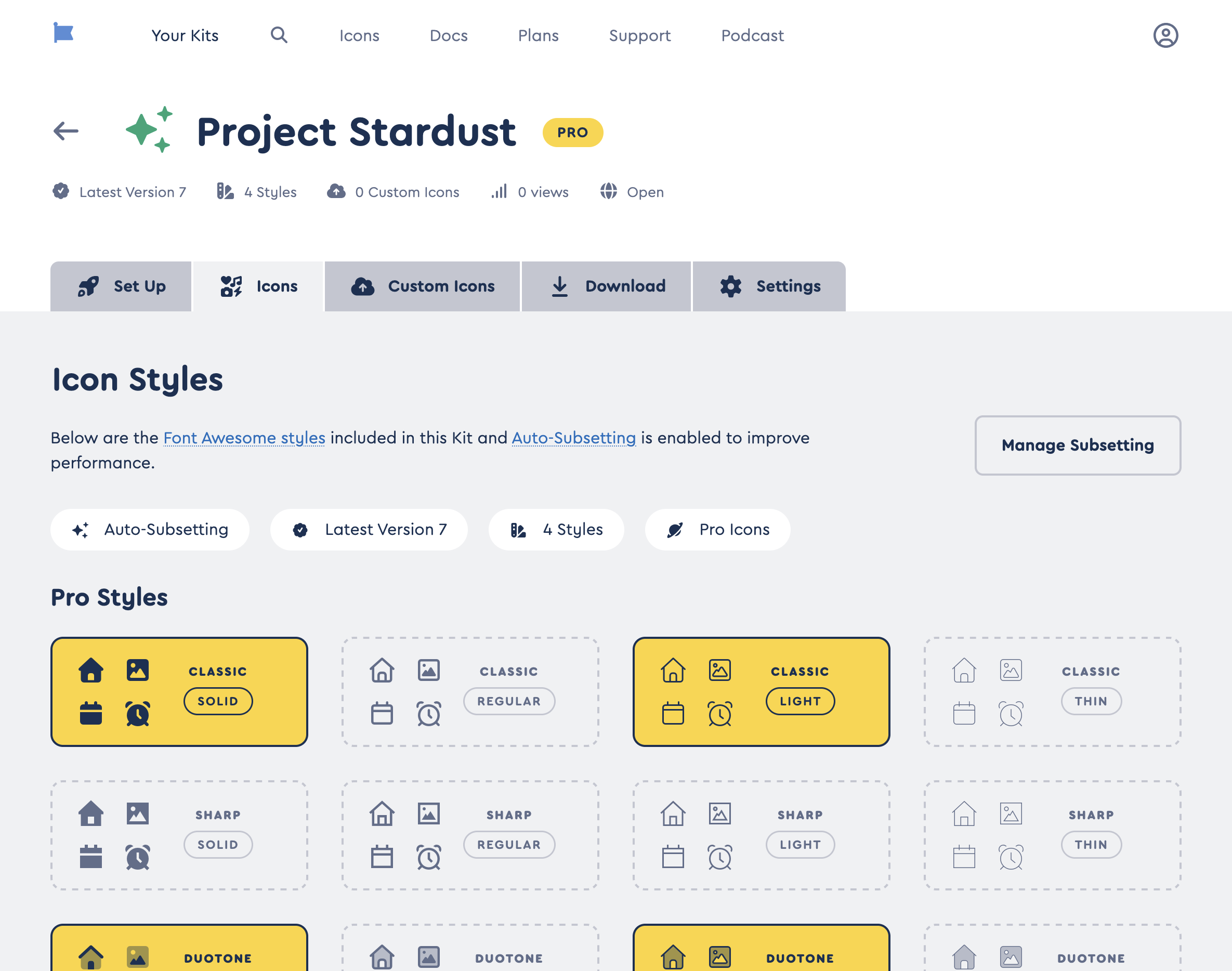 A Kit Icons page showing a Kit that includes 12 hand-picked icons
It comes with amazing features like:
- **Easy Icon Selection**: Serve only the icons you need - whether it's by icon, by style, or the full library - so your pages load lightning-fast
- **Upload Your Own Icons**: [Add your own icons](/web/add-icons/upload-icons.md) and serve them alongside Font Awesome ones!
- **Customize for What You Need**: Picky about Web Font or SVG? Want JS or need a CSS only embed option? Want to download or use as an npm package? Kits have you covered!
- **Older Version Compatibility**: Upgrade to the latest without changing all your icon references
- **Conflict Detection**: Help detect conflicting versions of Font Awesome in complex dev environments
- ... and more!
A Kit Icons page showing a Kit that includes 12 hand-picked icons
It comes with amazing features like:
- **Easy Icon Selection**: Serve only the icons you need - whether it's by icon, by style, or the full library - so your pages load lightning-fast
- **Upload Your Own Icons**: [Add your own icons](/web/add-icons/upload-icons.md) and serve them alongside Font Awesome ones!
- **Customize for What You Need**: Picky about Web Font or SVG? Want JS or need a CSS only embed option? Want to download or use as an npm package? Kits have you covered!
- **Older Version Compatibility**: Upgrade to the latest without changing all your icon references
- **Conflict Detection**: Help detect conflicting versions of Font Awesome in complex dev environments
- ... and more!
## Creating and Using a Kit
Kits are incredibly versatile. They are the fastest way to get icons into your web projects, using just one line of code. But you can also use them via npm or yarn package, download and self-host, or download to use icons in your desktop apps.
### Start from Your Kits Listing
You'll find a link to [your Kits](https://fontawesome.com/kits) in the main nav on [fontawesome.com](https://fontawesome.com/) or from [your Account page](https://fontawesome.com/account/general#kits). Click the "Add New Kit" button to start building a new Kit.
### Build a New Kit
https://www.youtube.com/watch?v=ZlwI6LrjYys
When you add a new Kit, we'll guide you through the set up process so it's exactly what you need. Here are the steps:
#### 1. Select Your Icons
There are 4 options when it comes to icon selection:
| Name | Details |
| ------------------------------------------------------------------------------------------------------------------------------------------------------------------------------------------------------------------------------------------------------------------------ | ------------------------------------------------------------------------------------------------------------------------------------------------------------------------------------- |
| FREE **Full Library, Free Icons** | All our Free icons - Solid and Regular styles, plus Brands - bundled together. They're fast to load, open-source friendly, and a great way to try out Font Awesome. |
| PRO **Full Library, Pro** **(and Pro+) Icons** | Includes ALL the icons Font Awesome you have access to in your plan. It's the easy option - All the icons will be available in your project, but will result in the largest Kit size. |
| PRO **By Style** | Includes all icons in only the styles you choose to include. A nice medium option to slim down the size of your Kit but still have the flexibility to try out a variety of icons. |
| PRO **By Icon** | Hand-pick exactly the icons your project needs. Smallest Kit, fastest load. The most nitty-gritty option for full control. |
#### 2. Customize Your Kit
- **Give your Kit a name:** Something memorable like your project name is a good choice. If you leave it blank, we'll use your Kit's unique ID.
- **Create a Package (optional)**: If you plan to use your Kit as a package, you can check off the package option. You can also do this from your Kit's Settings tab later.
- **Pick a Color and Icon:** Add some flair to make your Kit easy to identify in your list of Kits on fontawesome.com.
### Put Your Kit to Use
https://www.youtube.com/watch?v=yOFrPOldYsQ
From your Kit's page, you'll find the embed code you need to copy if you're using a hosted Kit. Add it to the `` of each template or page of your project that you want to use Font Awesome icons. Or, for other ways to use your Kit, click the Download link on your Kit's page.
```html
```
Replace `YOUR_KIT_CODE` with the unique code from [your Kit](https://fontawesome.com/kits).
#### About CSS-only Embed Codes
For those of you who prefer no JavaScript for "reasons", you can select the option to use a CSS Kit embed code in the Technology section in your Kit's settings (click the gear icon to open). Save your settings change, and you'll see the embed code at the top of your Kit change to a CSS link. Copy the new CSS embed code, paste it into your project's HTML ``, and Font Awesome will load using only CSS, no JavaScript.
**Heads up**: You'll need to set your Kit to use v7 with Web Fonts, and **make sure you're okay with the pros and cons** of this method:
| Pros of CSS-only Kits | Cons of CSS-only Kits |
| ------------------------------------ | ------------------------------------------------------ |
| Prevents page repaints or jumping UI | Blocks the page from loading until the icons are ready |
| Loads without JavaScript | Cannot set your Kit to use SVG icons |
### Additional Settings
Kits have a number of additional settings so you can tune your Kit to be just what you need. After you create your Kit, you can find most of those additional options in your Kit's settings (under the gear icon), while a few—like Font Awesome Version and Limit Domains—have their own controls right under your Kit's name.
| Kit Feature | Description | Default Setting |
| -------------------------------------------- | ---------------------------------------------------------------------------------------------------------------------------------------------------------------------------------- | ------------------------------------------------------- |
| Kit Name | An easily identifiable name for your Kit (maybe use a project or site name?) | The Kit's unique ID |
| Kit Color and Icon | Customize how your Kit looks on fontawesome.com | Yellow, icon is randomly selected |
| Type of Kit | Free includes all Free icons and is hosted, Pro lets you choose from any Pro/Pro+ icons and allows you to upload custom icons, download, or use as a package | Free for Free accounts, Pro for Pro accounts |
| Tech | Choose the type of tech you want to use to render your icons, Web Fonts or SVGs. | Varies with initial Icon Selection |
| Embed method | Change your embed code type from Javascript to [CSS-only](#about-css-only-embed-codes) if you need to avoid using JavaScript in your project. (CSS-only requires using Web Fonts.) | JavaScript |
| [Icon Selection](/web/dig-deeper/subsetting.md) | Choose your Icon Selection mode: Full Library, By Style, or By Icon. (By Icon lets you hand-pick individual icons.) | _user selected_ |
| Styles | Select the icon styles you plan to use in your project (i.e. want included in your Kit) | Solid, Regular, and Brands |
| Font Awesome Version | Select the version of Font Awesome icons and features you want to use. Set it using the Version link (badge-check icon) under your Kit's name. | Latest (auto-updates to whatever the latest release is) |
| Limit Domains | Set which domains are allowed to use this Kit to prevent unauthorized use of your Kit embed code. Set it using the Globe icon under your Kit's name. | Open (any domain can use) |
| Earlier version compatibility | Enables old v4 or v5 icon names or references | On |
| Enable npm Download | Creates a package that you can install via npm or yarn for node-based projects | Off |
| Conflict Detection | Temporarily [detects conflicts](/web/dig-deeper/conflict-detection.md) with other versions of Font Awesome loading in your project | Off |
### Ready to Get Kitted Up?
Take the power of Kits into your hand… Head over to Kits and get started!
Looking for the CDN?
The Font Awesome CDN only supports v5 and below so you need to use a Kit for the latest version.
## Downloading a Kit
If you don't want us to host your Kit, you can download any Pro Kit and host it yourself (or use the icons in your desktop apps). Downloading is available on Kits set to v6.4 and higher (or Latest). Click the Download link on your Kit's page to see your download options.
And if you have custom icons in your Kit, they will be included in your download in all the formats, just like the Font Awesome ones.
### What's in a Kit Download?
| Folders & Files | What They Are |
| :-------------- | --------------------------------------------------------------- |
| `css/` | CSS files for using with Web Fonts |
| `js/` | Icons and utility scripts for each style |
| `LICENSE.txt` | License detailing permitted use of Pro/Pro+ Icons |
| `metadata/` | Metadata about the icons |
| `scss/` | [SCSS-based](/web/use-with/scss.md) utiliies to use with Web Fonts |
| `sprites/` | Icons as [SVG sprites](/web/add-icons/svg-sprites.md) |
| `svgs/` | Icons as SVGs |
| `webfonts/` | Icons as Web Fonts to be used with CSS |
### Using a Downloaded Kit
Once you've downloaded the Kit, you can follow the instructions to [Host Yourself - Web Fonts](/web/setup/host-yourself/webfonts.md) or [Host Yourself - SVG+JS](/web/setup/host-yourself/svg-js.md) to get the icons and files into your project.
Using Icons on the Desktop?
Head over to the Desktop Kit Docs to get the scoop on what's in the download and how to use icons.
## Using Kit Packages
You can use and manage your Kit's assets as a package with package managers like `npm` or `yarn`!
A Kit package will contain whatever you put into your Kit. This includes the icons or styles you've selected in [Icon Selection settings](/web/dig-deeper/subsetting.md) for your Kit, any uploaded [Custom Icons](/web/add-icons/upload-icons.md), and Font Awesome's core Styling Toolkit.
**Remember**: Your Kit package will only include the icons or styles you've selected, and if you make changes, you'll need to update your package.
### Enable Package Installation for Your Kit
To make your Kit available as a package:
1. Go to your Kit's **Settings**
2. Check the **"Enable Installing Your Kit as a Package"** option
3. Save your changes
4. Click the **Package link** on your Kit's page for configuration details and usage instructions
---
## Tune Your Kits
### "By Icon" or "By Style" Subsetted Kits
If you have [set your Kit's Icon Selection Settings](/web/dig-deeper/subsetting.md#by-icon-kits) to "By Icon" or "By Style", your Kit will include ONLY the icons or styles you've selected plus any custom icons you've uploaded. That means:
- Hosted Kits will **only serve the icons you've picked and your custom icons** (if you have added some).
- Downloaded Kits will include the [same folders listed above](#whats-in-a-kit-download), but **the files and fonts inside will ONLY include your selected and custom icons**.
Once you've downloaded the Kit, you can follow the instructions to [Host Yourself - Web Fonts](/web/setup/host-yourself/webfonts.md) or [Host Yourself - SVG+JS](/web/setup/host-yourself/svg-js.md).
### Performance
Performance is one of those things you don't care about until you do. And luckily, we already took care of that for you!
Pro Kits offer multiple Icon Selection modes to help you optimize performance:
- ["By Style"](/web/dig-deeper/subsetting.md#by-style-kits) to include only selected styles
- ["By Icon"](/web/dig-deeper/subsetting.md#by-icon-kits) to hand-pick the exact icons your project needs for the smallest Kit and fastest load.
### Kits and Pageviews
https://www.youtube.com/watch?v=hDGnEJsK21w
A pageview is counted whenever your Kit is loaded on a page. We count pageviews per month, and they renew on the first of each month.
#### How many pageviews do I have?
Every Font Awesome subscription comes with a number of Kit pageviews which are counted across all Kits. (Free accounts a limited number of pageviews as well!) You can [check your Kit pageviews usage in your Account](https://fontawesome.com/account#kits).
#### I'm getting a lot more pageviews than I think I should be. What can I do?
Specifying a domain can help you control where and how you're using Font Awesome Kits which helps avoid unexpected extreme usage. If you're seeing more pageviews than you expected, you might want to add domains to limit which sites can use your Kit:
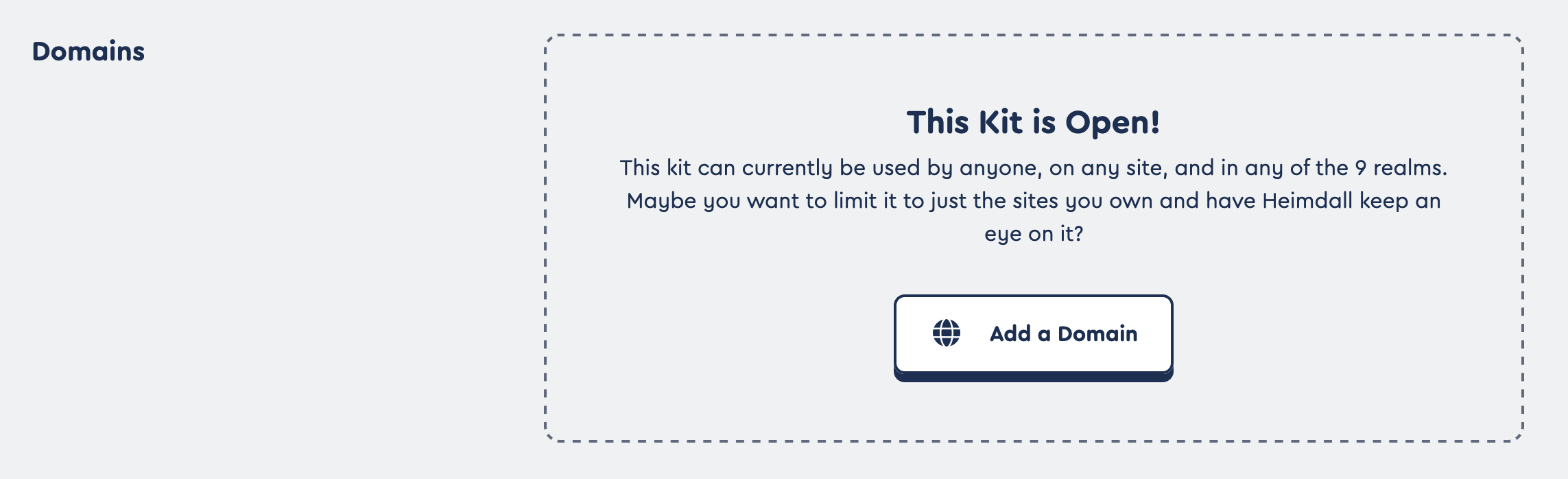 Limit your Kit to certain domains
1. **Go to your Kit**: Select the Kit you would like to manage from the [Your Kits](https://fontawesome.com/kits) page.
2. **Add Domains**: Click the Globe icon ("Limit by Domain") under your Kit's name and you can enter a domain you'll use the Kit on. (You can use wildcards to add subdomains or alternate endings - there's a link to the full details right there next to the setting.) Make sure to click the plus button to lock it in, and repeat to add more. If you need to remove one, hover over it and you'll have the option to delete.
3. **Save Your Kit**: Make sure to Save your Kit. Once it's saved, it will update within minutes and only load icons on the domains you entered.
Limit your Kit to certain domains
1. **Go to your Kit**: Select the Kit you would like to manage from the [Your Kits](https://fontawesome.com/kits) page.
2. **Add Domains**: Click the Globe icon ("Limit by Domain") under your Kit's name and you can enter a domain you'll use the Kit on. (You can use wildcards to add subdomains or alternate endings - there's a link to the full details right there next to the setting.) Make sure to click the plus button to lock it in, and repeat to add more. If you need to remove one, hover over it and you'll have the option to delete.
3. **Save Your Kit**: Make sure to Save your Kit. Once it's saved, it will update within minutes and only load icons on the domains you entered.
Testing locally with subdomains?
localhost is allowed by default, but we treat it as a reserved name (not a TLD) so wildcard subdomains like *.localhost (e.g., tenant1.localhost) aren't permitted. If you need to test multi-tenant or dynamic-subdomain apps locally, use the .test TLD instead — it's reserved for local development and supports wildcards (e.g., *.myapp.test). Add an entry to your hosts file to map it to 127.0.0.1.
#### What if I go over?
If you go over your pageview limit, you may have to pay [overage fees](https://fontawesome.com/plans#overages). Or if you know you'll regularly want lots of pageviews, you may consider [upgrading your plan](https://fontawesome.com/plans).
## Compatibility
Using a Kit can handle a lot of the hassle of setting up and using icons in a project. But there are some cases when you may want to reach for a different tool. Here are some scenarios with recommendations…
| Scenario | Use Kits? | |
| :----------------------- | :-------------------------------------------------------------------------------------------: | :------------------------------------------------------------------------------------------------------------------------------------------------------------------------------------------------ |
| On the Web (Hosted) | Yes | Get instant access to all icons and instant updates without worrying about hosting |
| On the Web (Self-Hosted) | Yes | [Pro only](https://fontawesome.com/plans): [Download a Kit](#downloading-kits) and host the production-ready web files yourself |
| With SCSS Preprocessors | Yes | [Pro only](https://fontawesome.com/plans): [Download a Kit](#downloading-kits) and add the [SCSS](/web/use-with/scss.md) files into your styling compile |
| On the Desktop | Yes | [Pro only](https://fontawesome.com/plans): [Download a Kit](#downloading-kits) and use its SVGs and [ligature-based fonts](/desktop/setup/get-started.md) in apps like Figma or Adobe Creative Suite |
| With WordPress | Yes | Use our [official Kit-powered WordPress plugin](/web/use-with/wordpress.md) or use a hosted Kit |
| Other CMSs | Yes | Use a hosted Kit |
| With JS Frameworks | No | Use our official [React](/web/use-with/react.md), [Vue](/web/use-with/vue.md), and other JS Framework components |