# Squarespace
Guide to adding and customizing Font Awesome icons on Squarespace websites.
> Adding Font Awesome icons to your Squarespace website is quick and easy.
We'll cover how to add inject Font Awesome code into the header of your [Squarespace](https://squarespace.com) website, and add them via code blocks into the body of your site.
Make sure you:
- Have set up a [Font Awesome Kit](/web/setup/use-kit.md) and have copied the Kit embed code.
- Logged in to your [Squarespace](https://squarespace.com) site.
## Add Your Kit Embed Code to Your Squarespace Header
From the dashboard of your Squarespace website, use the side menu to visit **Settings**. Next, navigate to **Advanced**, and then **Code Injection**. Paste your unique Kit embed code into the Header section. Be sure to save.
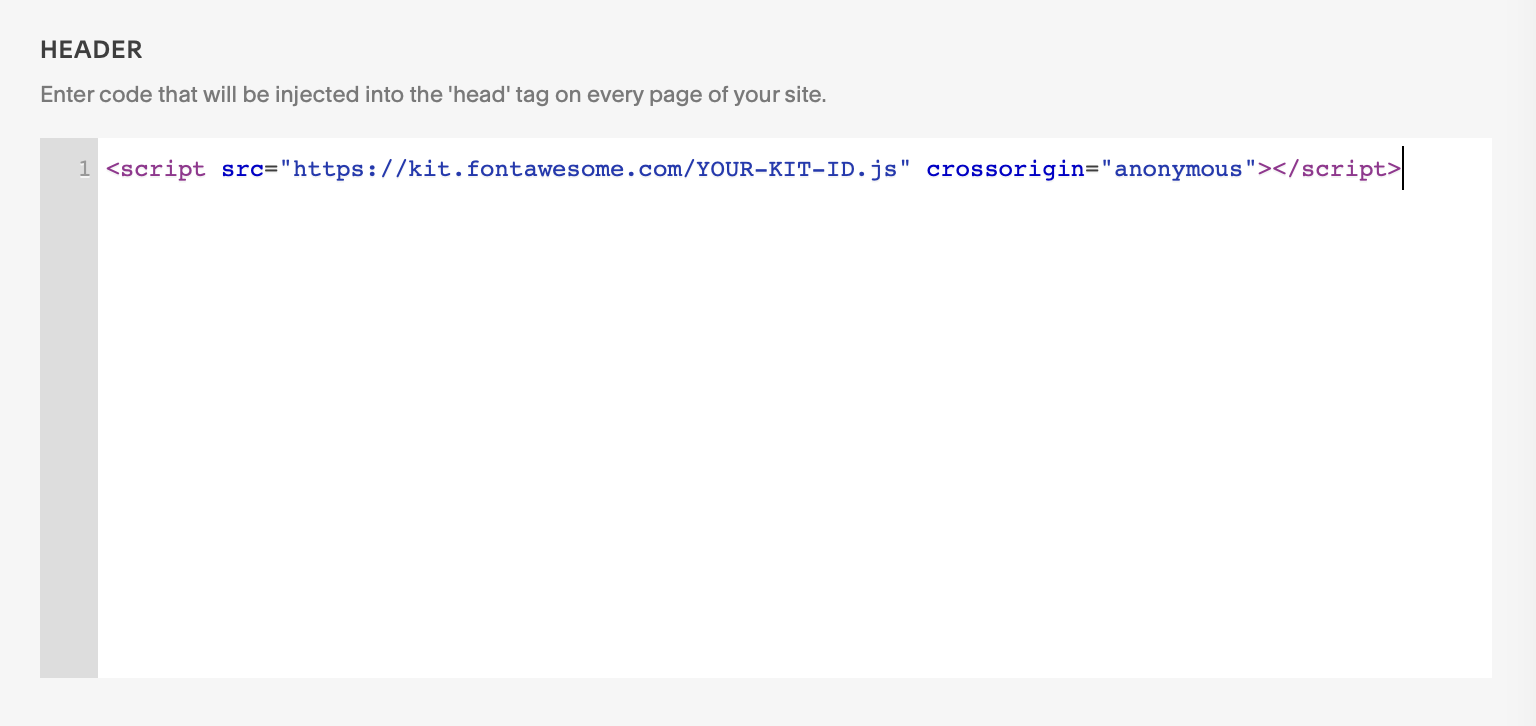 Adding your Kit embed code to Squarespace.
Your code will look similar to this (with the YOUR-KIT-ID replaced by your Kit's unique ID):
```html {.example}
```
## Add Icons to a Squarespace Page
From any page in your Squarespace website, follow their instructions for [adding a code block](https://support.squarespace.com/hc/en-us/articles/206543167-Code-blocks). With the code block open, edit the HTML content to display a Font Awesome icon.
Adding your Kit embed code to Squarespace.
Your code will look similar to this (with the YOUR-KIT-ID replaced by your Kit's unique ID):
```html {.example}
```
## Add Icons to a Squarespace Page
From any page in your Squarespace website, follow their instructions for [adding a code block](https://support.squarespace.com/hc/en-us/articles/206543167-Code-blocks). With the code block open, edit the HTML content to display a Font Awesome icon.
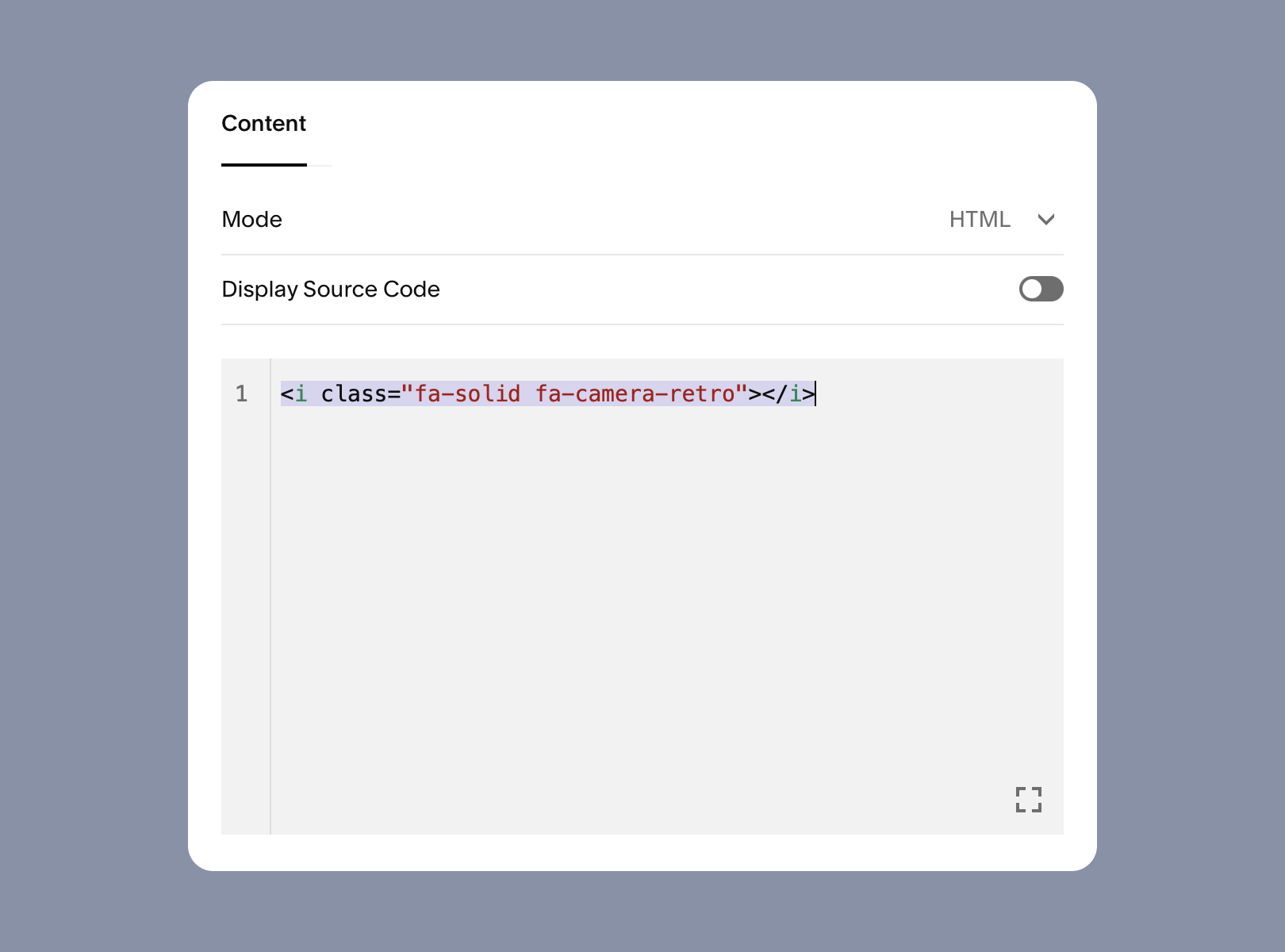 Reference an icon in your Squarespace code block.
From here, you can add any of our icons by following [How to Add Icons](/web/add-icons/how-to.md). For example, to add the Solid style of our camera-retro icon (a free icon), you can add it as an `` tag to the code block like this:
```html {.example}
```
To add an icon from one of our Pro styles, you can add it as an `` tag to the code block like this:
````html {.example}
```
````
Reference an icon in your Squarespace code block.
From here, you can add any of our icons by following [How to Add Icons](/web/add-icons/how-to.md). For example, to add the Solid style of our camera-retro icon (a free icon), you can add it as an `` tag to the code block like this:
```html {.example}
```
To add an icon from one of our Pro styles, you can add it as an `` tag to the code block like this:
````html {.example}
```
````