Customers of Fort Awesome can now migrate to Font Awesome Kits. In this guide we'll show you how.
Before You Start
Make sure you:
- [You have a fortawesome.com account](https://fortawesome.com) that includes Download
- You have a Font Awesome Pro (fontawesome.com) subscription
You'll be able to change your Kit settings later if you wish, this is just a
place to start to get things going.
Name your Kit and complete the creation process
Give your Kit a name if you wish. It's a good idea to have this name match the name in Fort Awesome.
Click Make My Kit
Update settings to optimize your Kit
Now that your Kit has been created, go the the Settings for the new Kit
In the Subset section, choose Custom Subsetting. This will effectively empty your Kit out.
Click Save Changes
Import your icons
Find the page that allows you to upload icons
Click the Custom Icons tab
Click Upload Your First Icon
Fort Awesome icons in macOS Finder
Locate the files that you downloaded from Fort Awesome
Dragging files into the upload page
Browse or drag the files to your Kit's upload screen
The results of selecting icons to upload
Keep an eye out for icons that can't be uploaded. You may need to edit or revise these icons before your Kit import is complete. If you need help email [email protected]
Click Upload + Publish [Icon count] Icons
Freshly imported icons
After your icons upload you should be back on your Kits Custom Icons tab
Update your project
View an icon to learn how to use it
Now that you've imported your icons you'll most likely need to update your project to use the new syntax. A Font Awesome Kit uses fa-kit and fa-ICON-NAME.
If you have issues with this process or an icon doesn't work as expected, let us know.
You Have Options Now
Your new Kit includes some features that may not have been available in your old Fort Kit.
You can:
Add any of Font Awesome's thousands of icons by going to Icons and selecting them
You can use Font Awesome's CSS loader by changing Settings → Embed Code
You can restrict which domains are able to load your Kit in Settings → Domains
You can install your Kit with an npm-compatible package manager in Settings → Enable Installing Your Kit as a Package
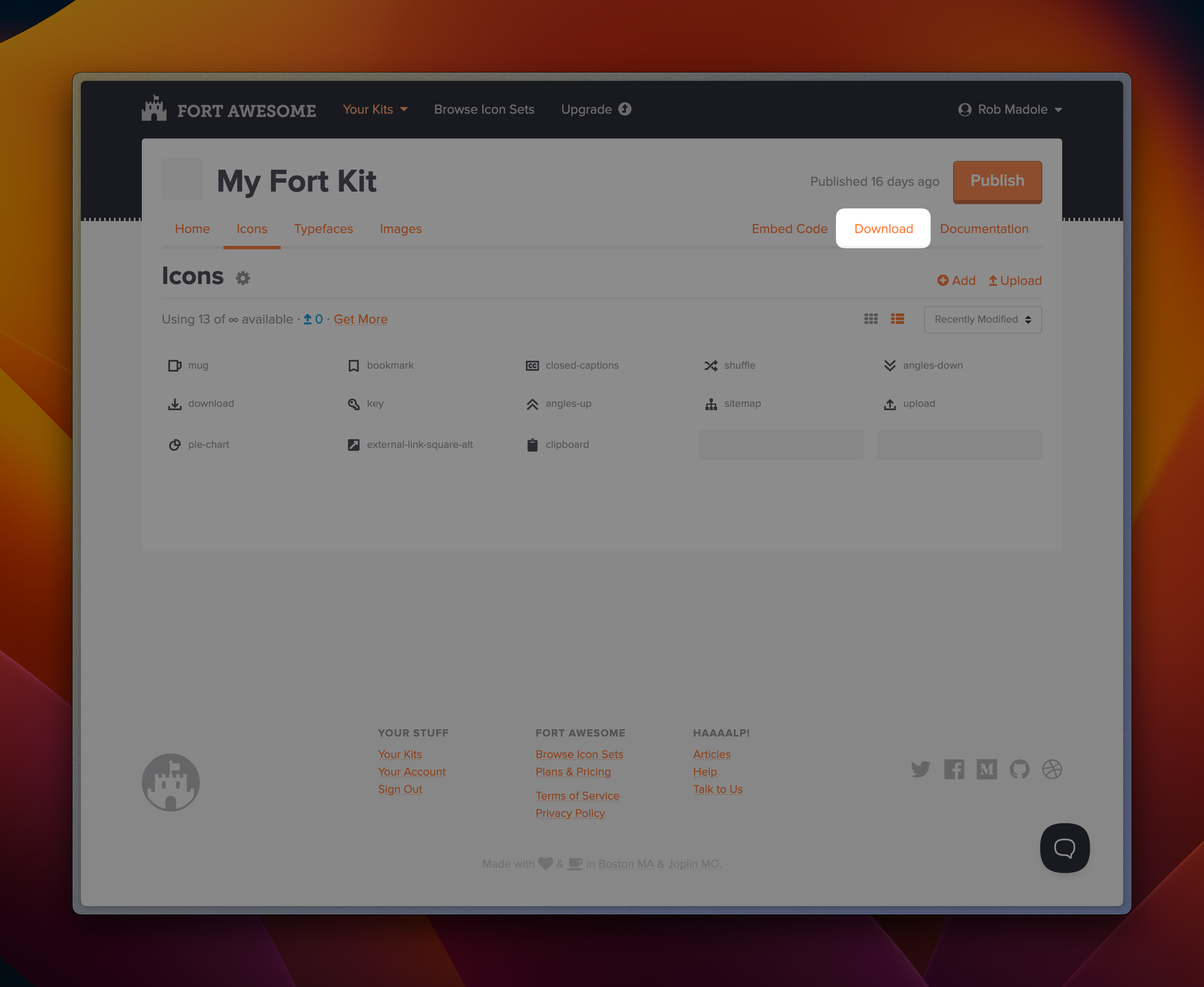 Download your Fort Kit
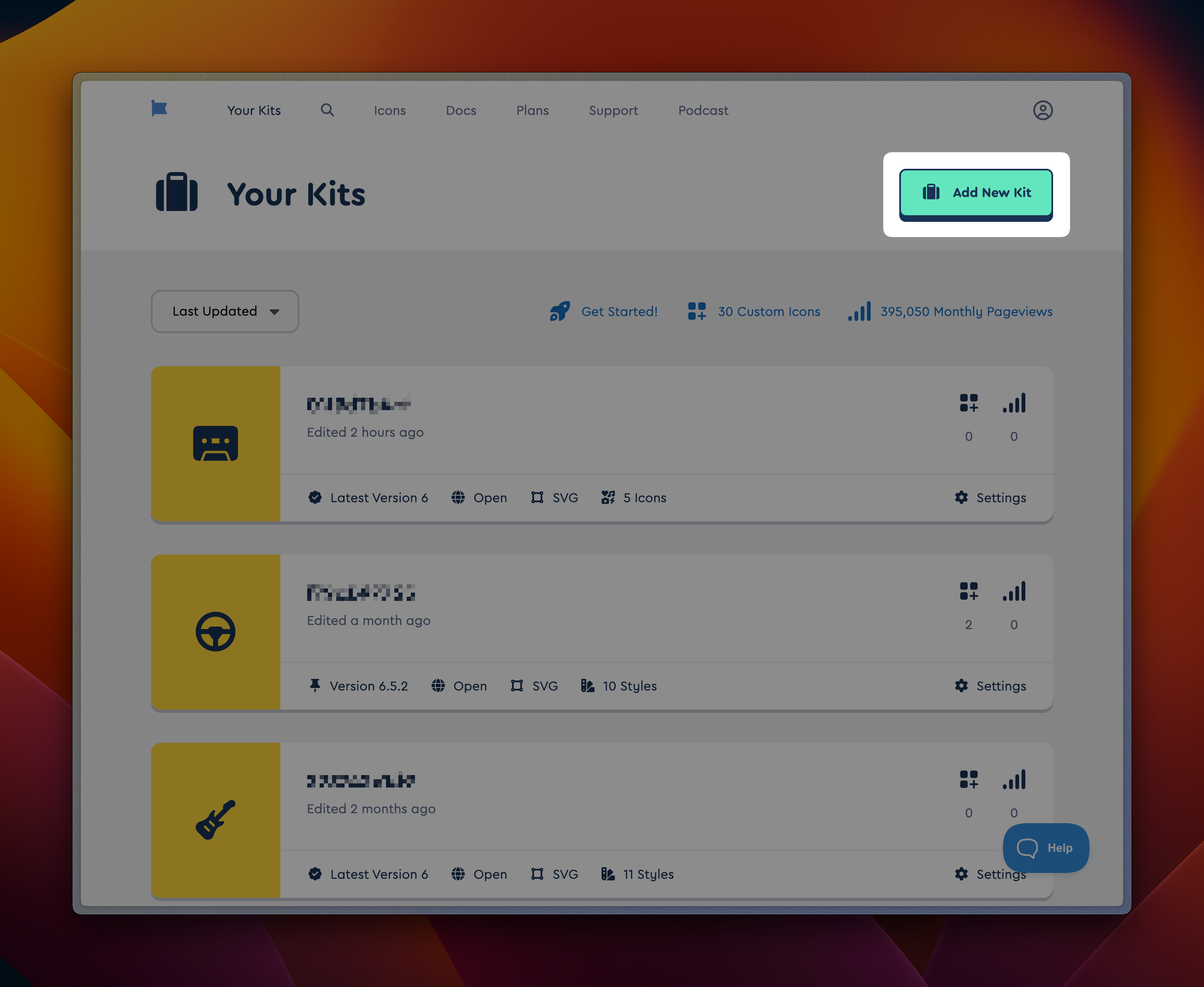 Begin at your Kits page to create a new one
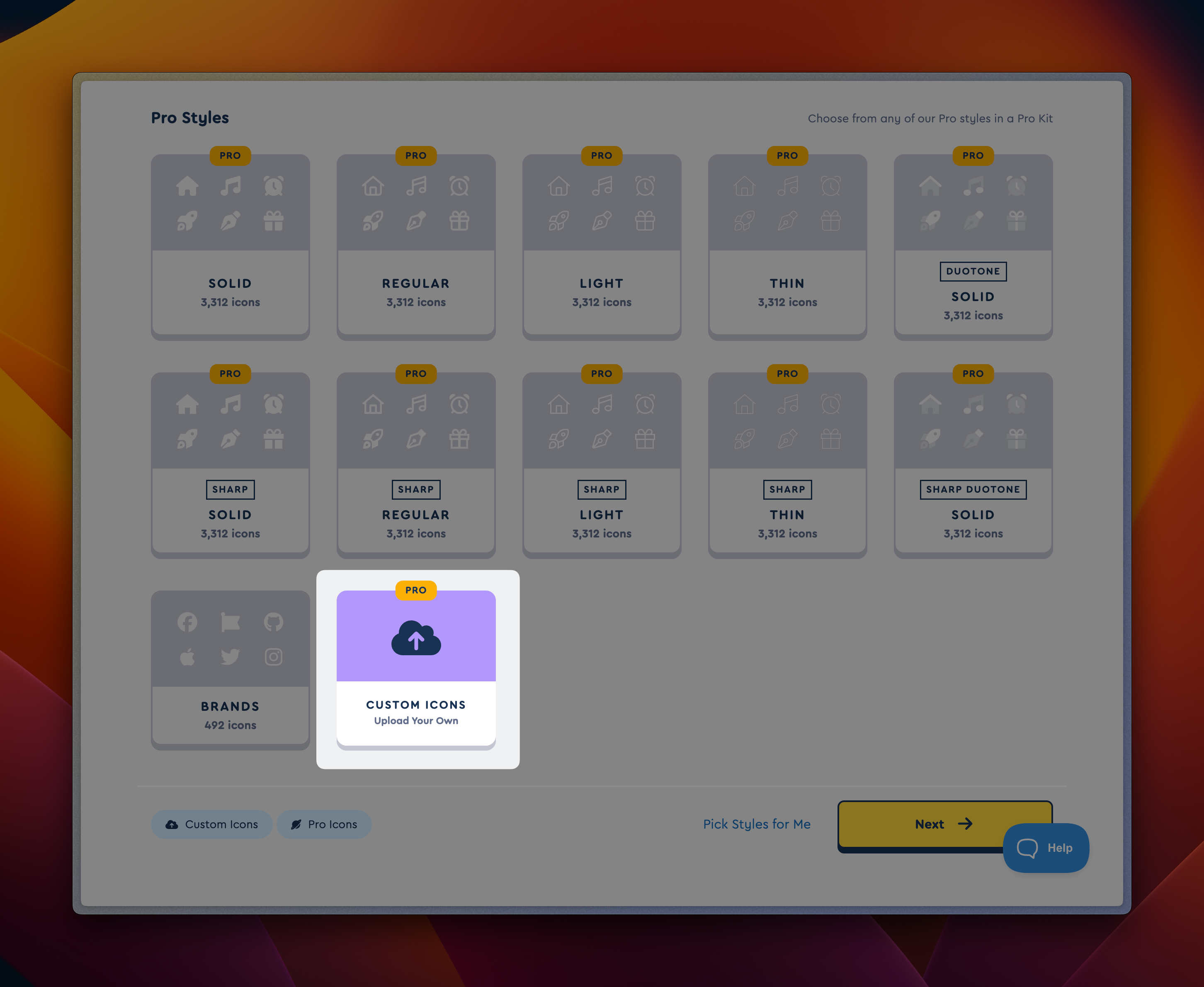 Choose which styles you'd like in your Kit
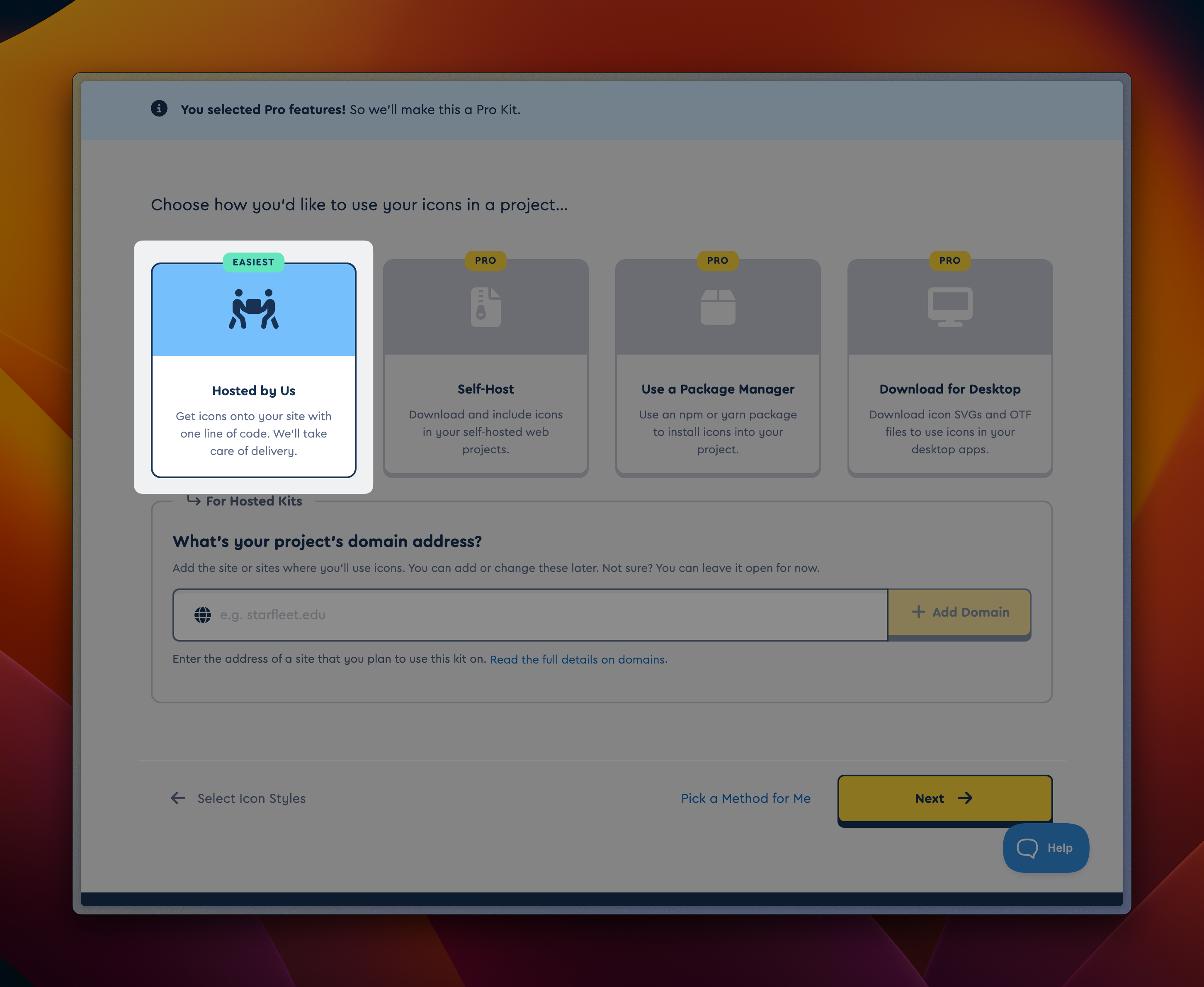 Select how you'd like to use your icons
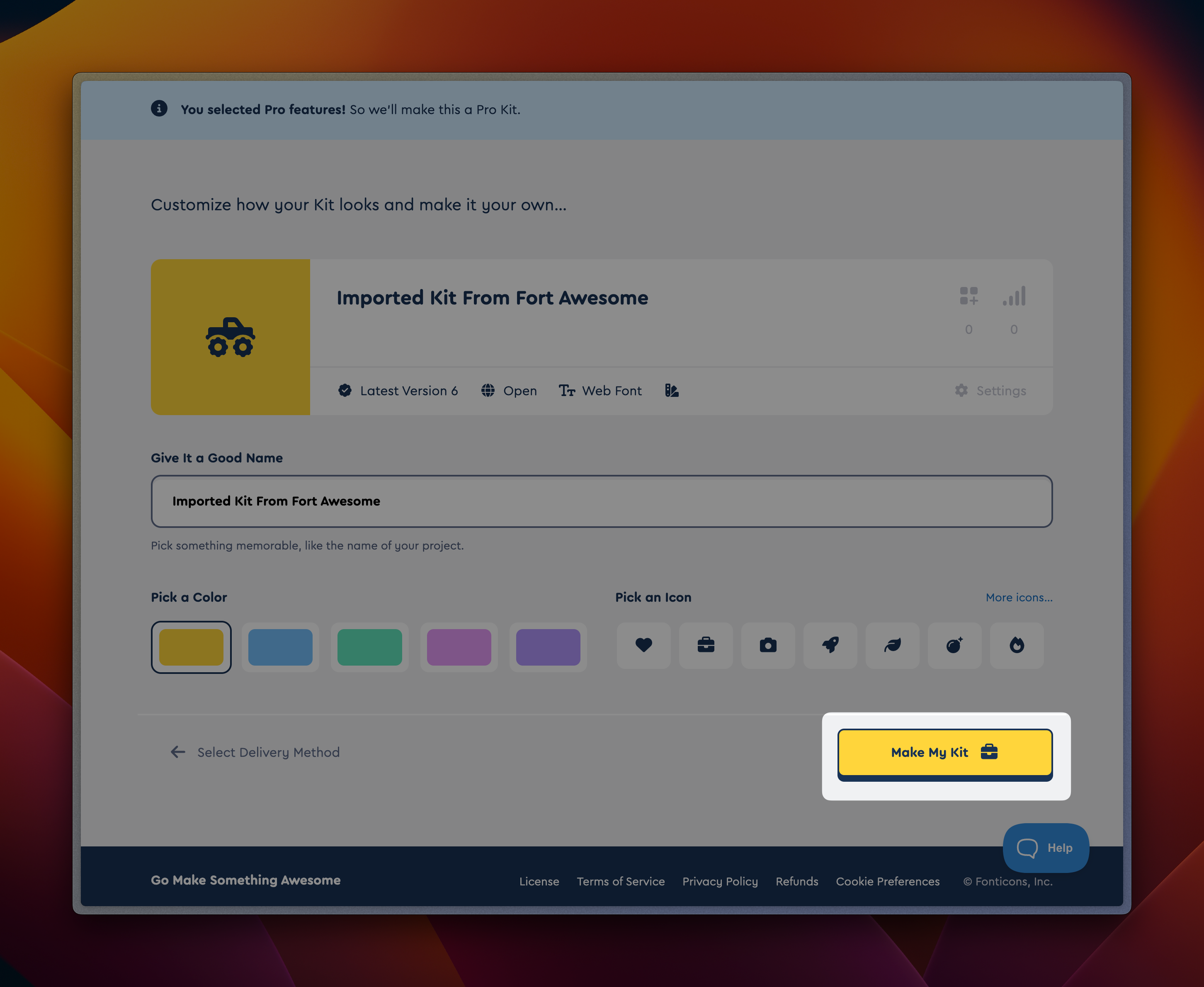 Name your Kit and complete the creation process
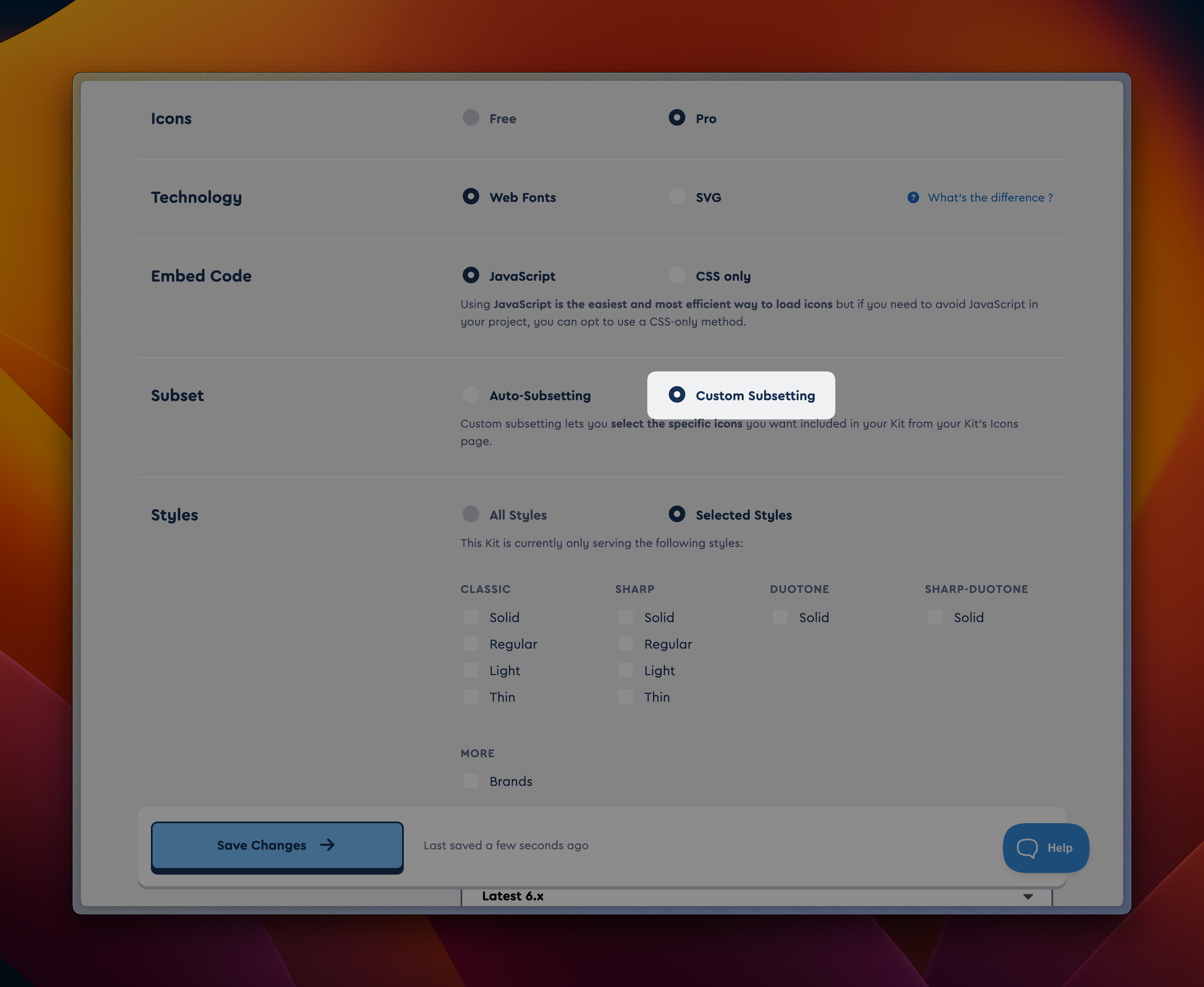 Update settings to optimize your Kit
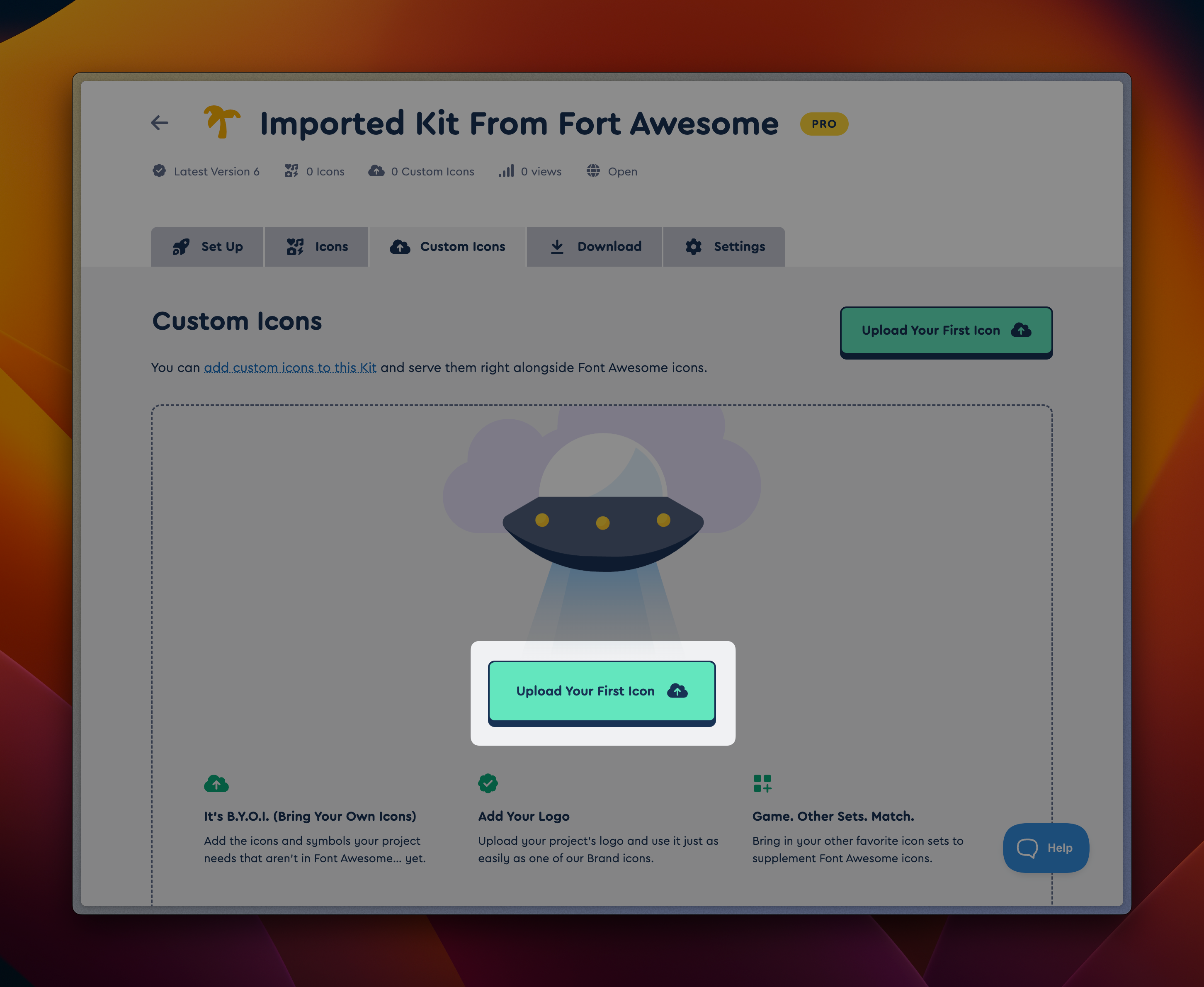 Find the page that allows you to upload icons
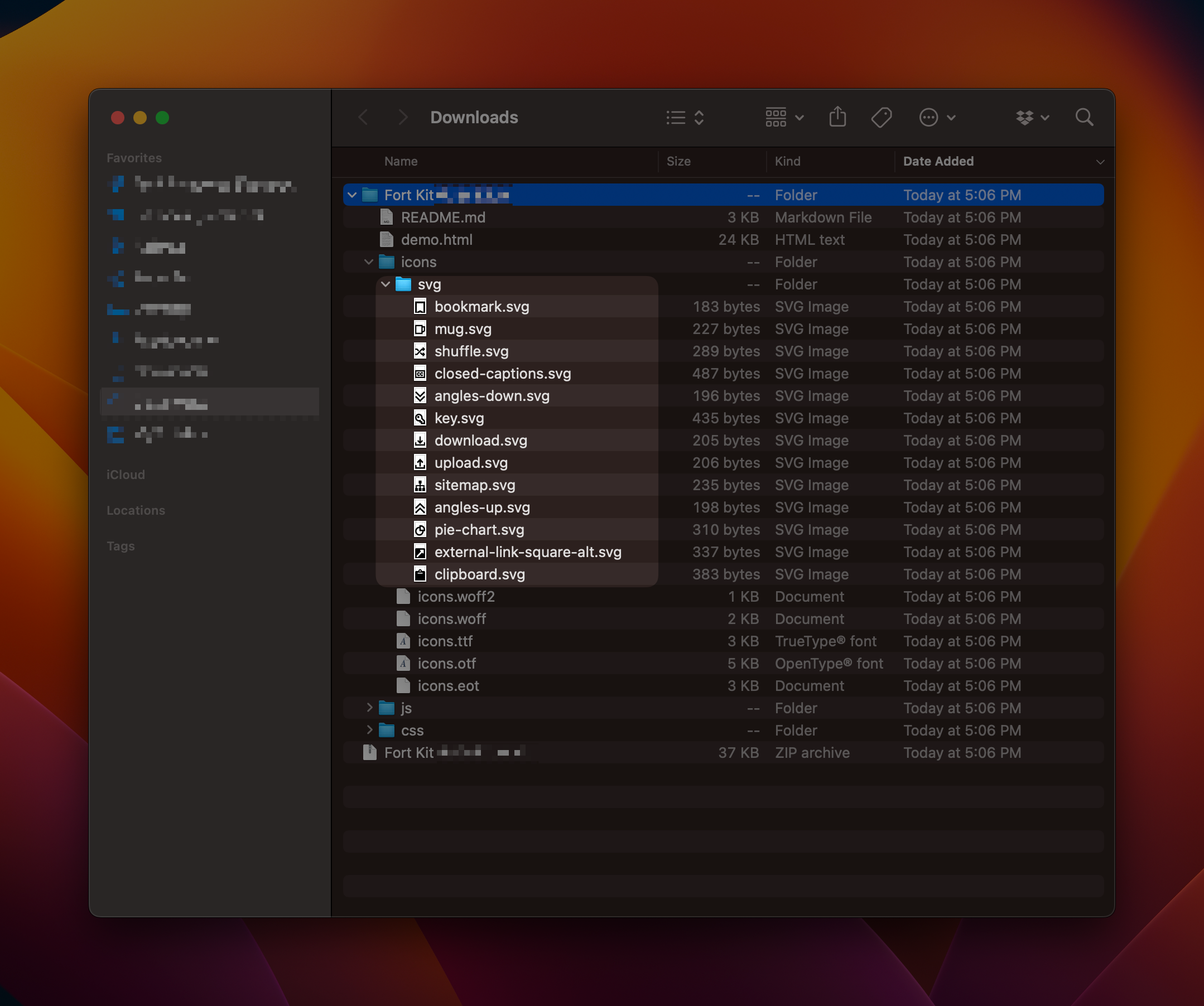 Fort Awesome icons in macOS Finder
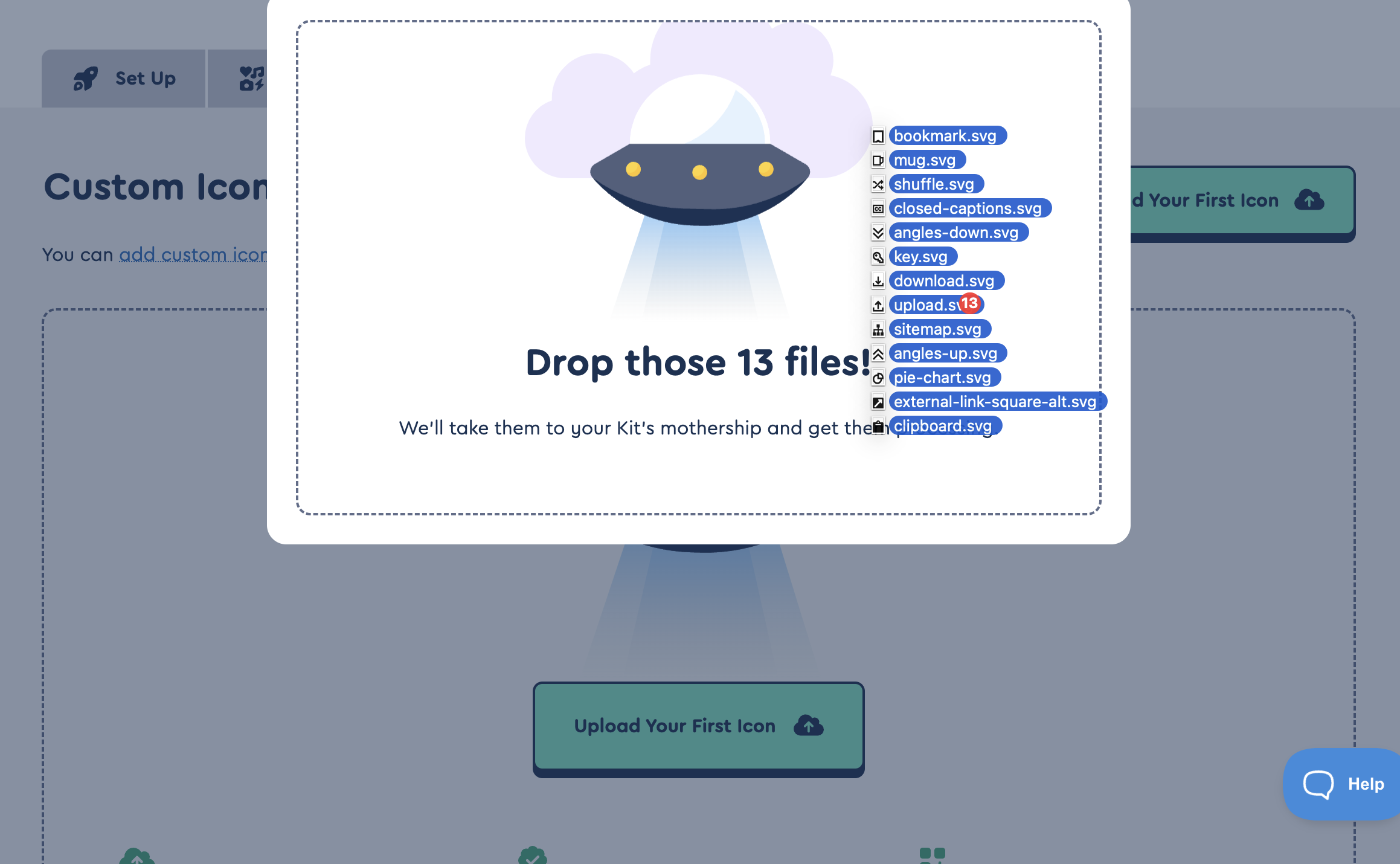 Dragging files into the upload page
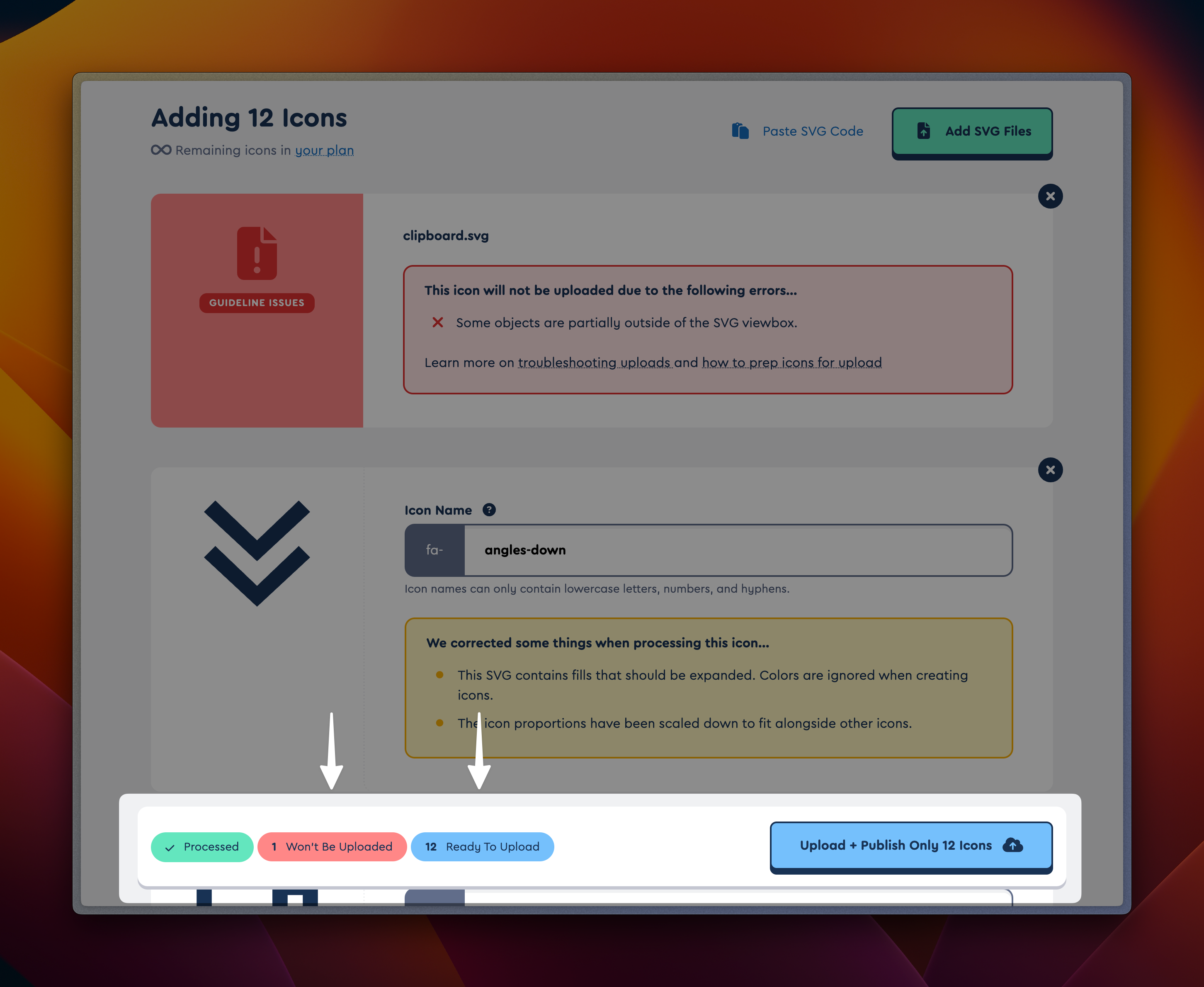 The results of selecting icons to upload
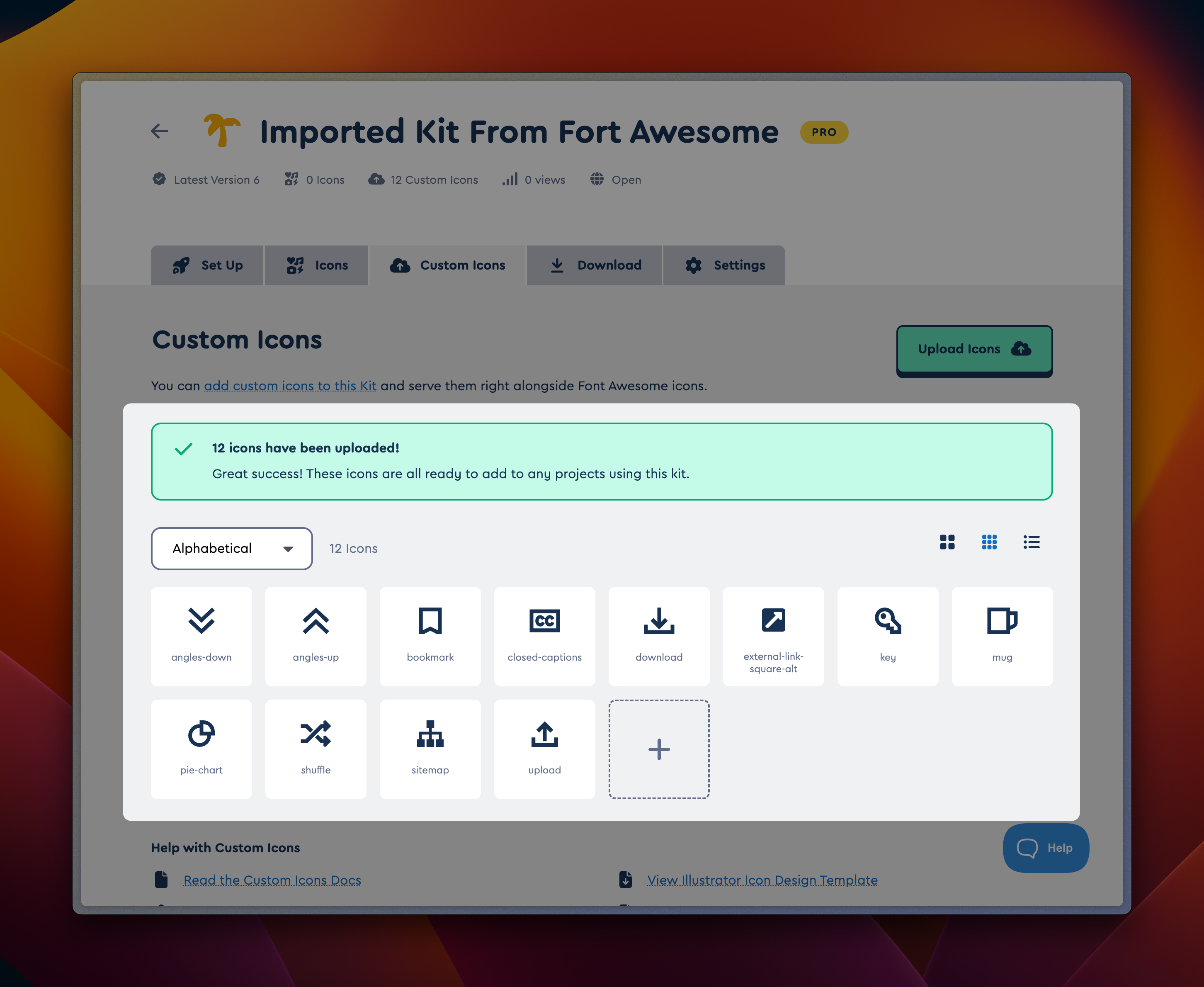 Freshly imported icons
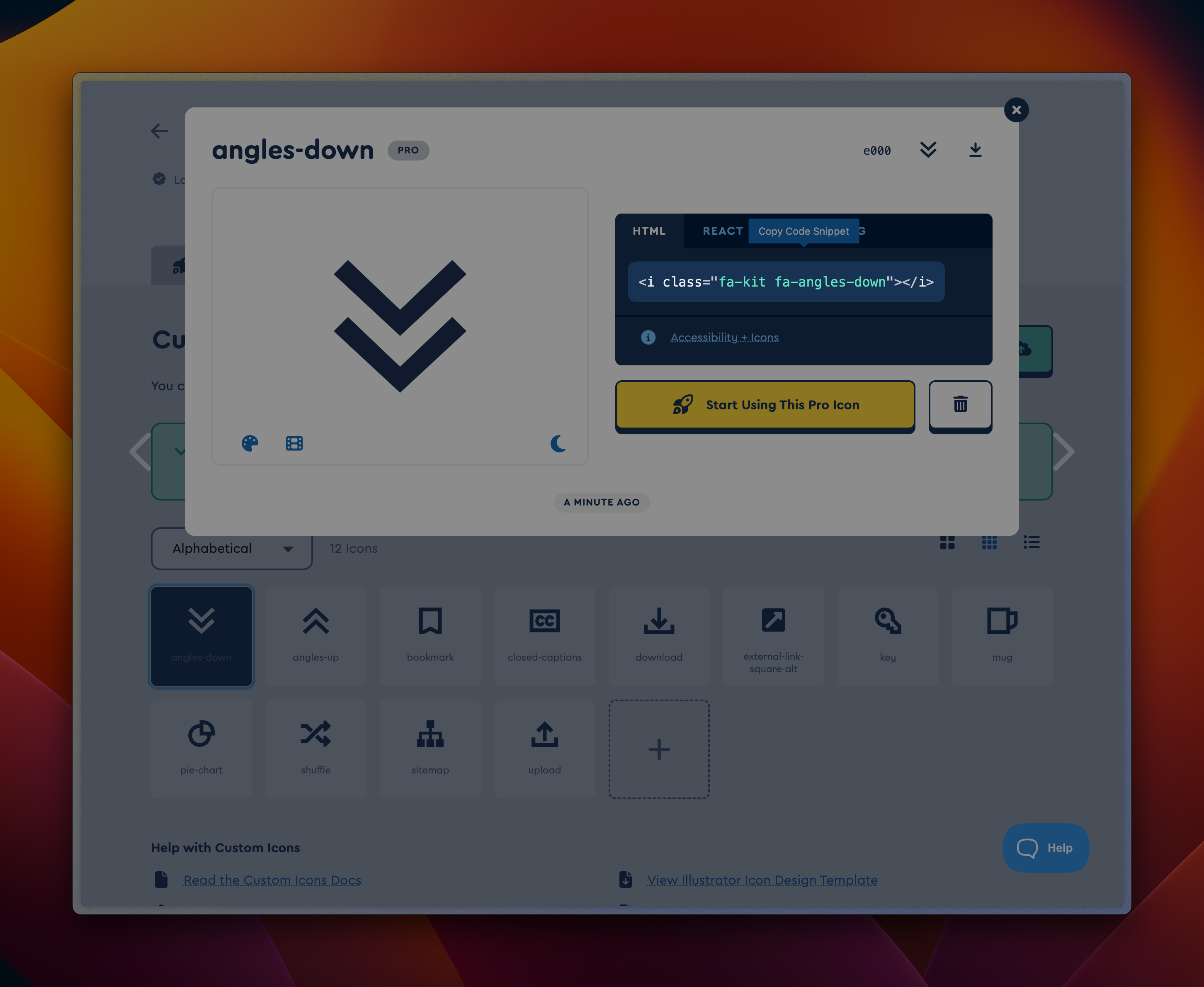 View an icon to learn how to use it